

1 Introduction
There is growing interest in collecting and annotating corpora of language use. Annotated corpora are useful for formulating and verifying theories of language interaction, and for building statistical models to allow a computer to naturally interact with people.
There are a number of different annotation tasks, such as transcribing what words were said, marking POS tags, disfluencies, utterance boundaries, speech acts, co-references, and hierarchical discourse segments. A number of tools have been developed for these annotation tasks. Depending on the annotation task, the tools take different input, and present the input in different ways. For example, for word transcription, they give users a view of the audio signal with all annotations time-aligned to it. For annotating speech acts, co-reference, and hierarchical discourse segments, the tools tend to take a list of utterances as input, and give users a view that shows the interaction utterance by utterance, like a movie script. These two views let users focus on different aspects of the data, such as the exact timing of audio events, or on an abstracted level, where the user can see a larger portion of the dialogue and how an utterance fits into the context.
Annotating with a single view, however, is inadequate. First, an annotation task might require more than one view of the data, as a single view abstracts away some of the details that the other view will show. For example, annotating discourse segments needs a larger perception of the interaction, as afforded by an utterance-by-utterance view. However, to determine whether an utterance, such as “okay”, belongs to the end of a segment or signals a new one, it is helpful for the user to see the exact timing of the “okay”; if the “okay” is distant from the previous utterance, then this is evidence (along with intonation) that the “okay” begins the next segment. Thus seeing multiple views can be helpful for an annotation task.
The second reason why a single view is inadequate is that users need the ability to do multiple tasks at the same time. Although best practice calls for doing each annotation task separately (Bernsen, Dybkœr and Kolodnytsky Reference Bernsen, Dybkœr, Kolodnytsky, Kuppevelt and Smith2003), this best practice needs to take into account the interactions between tasks. It might only be when doing one annotation task that one realizes a mistake in another. For example, one could first segment a dialogue into utterances, then annotate disfluencies, and then tag the utterances with speech acts. The problem is that the tasks of annotating disfluencies and utterance boundaries are highly intertwined, and it is only by considering both tasks that one can make sense of each (Heeman and Allen Reference Heeman and Allen1999). A second example is with utterance segmentation and speech act tags. What is an utterance often depends on what can be annotated with the speech act tags (Allen and Core Reference Allen and Core1997). Thus in doing one annotation task, users might need to modify annotations done previously. These annotation tasks might require different views.
For users to have multiple views, they could launch multiple tools. This is problematic for the following two reasons. First, when users reposition the part of data that one tool is showing, they have to manually reposition the second tool as well, which is cumbersome. Second, when users change an annotation in one tool, this change will not propagate into the second tool. Moreover, if the changed annotation is part of the input to the second tool, users might have to redo all of the annotations they had done with the second tool. Hence, a single tool that shows the interaction in multiple views is needed.
A single tool with multiple views does not need to show all of the information in each view; rather, each view can use a subset of the information. We refer to the data used in a view as an abstraction. The abstraction can even include arbitrary functions on the data. A simple example is an abstraction for an audio-level view, which might not include discourse blocks or all utterance tags. In contrast, the abstraction for an utterance-by-utterance view uses the utterance segmentations from the audio-level view to display the words segmented by utterance units, abstracting away the exact timing of the words. Such an abstraction might also exclude some words, or even some utterances, depending on the annotation task. With abstractions, the information in each view can be chosen so that it complements what is shown in the other views.
The purpose of this paper is two-fold. The first is to describe our annotation tool, DialogueView (Heeman, Yang and Strayer Reference Heeman, Yang and Strayer2002), which allows users to annotate speech repairs, utterance boundaries, utterance tags, and hierarchical discourse blocks. Researchers studying dialogue might want to use this tool for annotating these aspects of their own dialogues. The second purpose is to give a concrete example of how abstraction can be used in annotating human interaction. Although this paper focuses on spoken dialogue, we feel that abstraction could be used in annotating monologues, multi-party and multi-modal interaction, with any type of annotations, such as syntactic structure, semantics and co-reference. Researchers might benefit from adopting the use of abstraction in their own annotation tools.
The annotation tool, DialogueView, consists of three views: WordView, UtteranceView, and BlockView. These three views present different abstractions, which help users better understand what is happening in the dialogue. WordView shows the words time-aligned with the audio signal. UtteranceView shows the dialogue as a sequence of utterances. It abstracts away from the exact timing of the words and can even skip words, based on WordView annotations, that do not impact the progression of the dialogue. BlockView shows the dialogue as a hierarchy of discourse blocks, and abstracts away from the exact utterances that were said. Annotations are done at the view that is most appropriate for what is being annotated. The tool allows users to easily navigate among the three views and it automatically updates all views when changes are made in any one view.
In the rest of this paper, we first review other annotation tools. In Section 3, we describe the basics of DialogueView, which encapsulate the features of the other tools. In Section 4, we discuss how DialogueView uses abstractions to simplify what is shown in each view. In Section 5, we describe a user study that demonstrates the benefit of abstractions. In Section 6, we describe a companion tool for visually comparing multiple annotations. Finally, we describe the implementation and extensibility of the tool.
2 Existing tools
There are many existing tools for annotating dialogue. We categorize them by how they present a dialogue to users.
2.1 Audio view tools
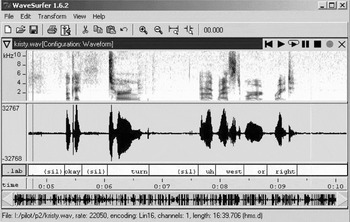
The first category of tools displays the waveform of the audio file and allows users to make annotations time-aligned to the audio signal. This category includes Emu (Cassidy and Harrington Reference Cassidy and Harrington2001), Speech Viewer (Sutton, Cole, deVilliers et al. Reference Sutton, Cole, de Villiers, Schalkwyk, Vermeulen, Macon, Yan, Kaiser, Rundle, Shobaki, Hosom, Kain, Wouters, Massaro and Cohen1998), Praat (Boersma and Weenik Reference Boersma and Weenink2005), and WaveSurfer (Sjölander and Beskow Reference Sjölander and Beskow2000). Figure 1 shows the interface for WaveSurfer. These tools often allow multiple annotation tiers, which can be used for different annotation tasks. For instance, the ToBI annotation scheme (Pitrelli, Beckman and Hirschberg Reference Pitrelli, Beckman and Hirschberg1994) uses one tier for the word transcription, a second for intonation tags, a third for break indices, and a fourth for miscellaneous information, including disfluencies. These tools often have powerful signal analysis packages for displaying such phenomena as the spectrogram, F0 contour, and voicing. Some tools display a video as well, such as Anvil (Kipp Reference Kipp2001).
The interface of WaveSurfer.

These tools are intended for tasks like word and phoneme transcription, acoustic event annotation (such as intonational phrasing and word accents), and utterance segmentation. However, these tools are not good for coding higher level information, such as speech acts or hierarchical discourse structure, because these tasks require that users understand a much larger context. For these tasks, often there is no need to see the exact timing of each word or to see the abandoned speech (which does not contribute to the dialogue); instead, users want to see how utterances are segmented, what they are intended to convey, and how they are related to each other. Thus users need a view that suppresses information that is not directly relevant, such as the exact timing of words, and emphasizes what is important, such as utterance segmentation.
2.2 Utterance-by-utterance view tools
The second category of tools displays a dialogue as a sequence of utterances and formats the utterances line-by-line, like a movie script. These tools are used for annotating the higher-level structure of dialogue. DAT allows users to annotate utterances or groups of utterances with the DAMSL scheme (Allen and Core Reference Allen and Core1997; Core and Allen Reference Core and Allen1997). MMAX (Müller and Strube Reference Müller and Strube2003) allows for multiple annotation tasks, such as speech acts and co-reference. N.b. (Flammia Reference Flammia1998) allows users to annotate discourse structure as a hierarchical grouping of utterances. All three tools take as input a dialogue as a sequence of speakers' utterances. This simplification can make it difficult for users to truly understand what is happening in the dialogue, especially when there are disfluencies, abandoned utterances, and overlapping speech.
2.3 Tools with multiple views
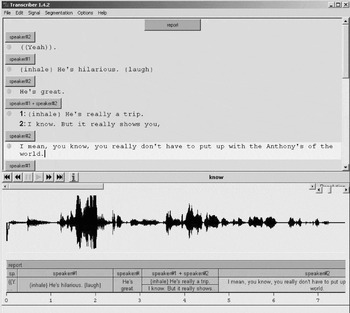
Transcriber (Barras, Geoffrois, Wu and Liberman 2000) gives users two views of a dialogue. The interface of Transcriber is shown in Figure 2. It takes as input an audio file of a dialogue. The user can mark utterance boundaries and transcribe what was said in each utterance. A second view, which organizes the dialogue as a sequence of speakers' utterances, allows users to annotate them with speech acts and to group them into topics.
The interface of Transcriber.

Transcriber lacks support for annotating some common dialogue phenomena. First, Transcriber is weak in handling overlapping speech. If there is overlapping speech, users must treat the overlap as a special utterance, spoken by both speakers. For some typical cases of overlap (see Section 4.1), this creates a convoluted interpretation of the dialogue. Second, Transcriber does not provide direct facilities for annotating disfluencies. Third, although Transcriber offers flat (topic) segmentation, hierarchical segmentation is not supported.
Transcriber has some basic abstraction mechanisms. The utterance-by-utterance view abstracts away the detailed timing of words for coding speech acts and discourse blocks. However, more powerful abstractions, such as abstracting away disfluencies, abandoned speech, and overlapping utterances, are not provided.
2.4 Toolkits
In addition to existing tools, there are several toolkits that allow researchers to build tools for a wide range of annotation tasks. AGTK (Bird, Maeda, Ma and Lee Reference Bird, Maeda, Ma and Lee2001) is a toolkit based on a knowledge representation scheme called Annotation Graphs (Bird, Day, Carofolo et al. Reference Bird, Day, Carofolo, Henderson, Laprun and Liberman2000). The toolkit provides functions for reading and writing annotations, displaying a waveform, transcribing a segment of speech, and annotating segments with multiple sets of labels. These modules can be used with a programming language (C++, Tcl/Tk, or Python) to build an annotation tool.
A second toolkit is the MATE Workbench (McKelvie, Isard, Mengel et al. Reference McKelvie, Isard, Mengel, Moeller, Grosse and Klein2001). Users specify their annotation task using the MATE style sheet language, which is an XML specification of (i) the data that users will annotate, (ii) how to annotate the data, and (iii) how to display the annotated data. This toolkit can be used for creating tools that let users perform multiple annotation tasks, including part-of-speech tags, co-reference, and utterance tags.
A third toolkit is the NITE XML Toolkit, which is intended for annotating multi-modal data (Carletta, Isard, Isard et al. Reference Carletta, Evert, Heid, Kilgour, Robertson and Voormann2003). This toolkit provides two ways of building an annotation tool. First, similar to AGTK, the toolkit provides modules that can be used with the Java programming language to build an annotation tool. Second, similar to MATE, the toolkit can take as input a style sheet to create an annotation tool.
These toolkits suffer the following problems. First, they do not provide built-in support for a number of annotation tasks, such as annotating disfluencies, overlapping speech, and hierarchical discourse structure. Second, the toolkits do not advocate nor provide built-in abstraction mechanisms useful for understanding and annotating dialogue. No support is provided for abstracting out disfluencies, abandoned speech, and overlapping utterances in an utterance-by-utterance view; nor is support provided for displaying annotations in a time-aligned audio view. Although the toolkits are flexible enough that users can program almost any functionality that is needed, it is unclear how much effort it would take to implement the functionalities listed above to build a tool as powerful as DialogueView.
3 The basics of DialogueView
In this section, we describe the basic features of DialogueView, which encapsulate the features provided by other tools such as Speech Viewer, DAT, N.b., and Transcriber. DialogueView provides the user with the following key features:
• Annotation can be done at the view that is most appropriate
• Each view abstracts information away from lower views
• Changes in one view propagate to others
• Views can be synchronized
• Users can see the dialogue
• Users can hear the dialogue
3.1 WordView
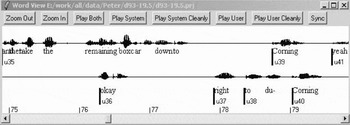
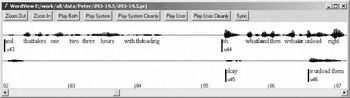
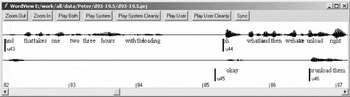
The first view in DialogueView is WordView, which takes as input two audio filesFootnote 1 (one for each speaker), the words said by each speaker together with their start and stop times (in XML format), and shows the words time-aligned with the audio signal.Footnote 2Figure 3 shows WordView with an excerpt of a dialogue from the Trains corpus (Heeman and Allen Reference Heeman and Allen1995b). This view is ideal for seeing the exact timing of speech, especially overlapping speech.
Utterance segmentation in WordView.

WordView gives users the ability to select a region of the dialogue and to play it. Users can play each speaker channel individually (Play System and Play User) or both combined (Play Both). This capability is especially useful for overlapping speech, where users might want to listen to what each speaker said individually, as well as to hear the overlap between the speakers. The Play System Cleanly and Play User Cleanly buttons provide functionality to play the speech with disfluencies removed, which will be addressed in Section 4.3.
3.2 Segmenting word sequences into utterances
One function of WordView is to allow users to break up the speech of each speaker into segments, which we refer to as utterances. Figure 3 shows a dialogue excerpt segmented into utterances. A vertical bar indicates the start time of the utterance. The end time is not explicitly shown; it is simply the end time of the last word in the utterance. In the example, the top speaker's utterances are “and then take the remaining boxcar down to”, “Corning”, and “yeah”, and the bottom speaker's utterances are “okay”, “right”, “to du-”, and “Corning”. Users can easily move, insert or delete utterance boundaries. WordView ensures that boundaries never fall in the middle of a word.
As can be seen in the example, utterances of one speaker are allowed to overlap with the utterances of another speaker. This allows us to easily annotate backchannels, which often overlap with the other speaker's utterances, as illustrated by the bottom speaker's “okay” at 76.3 seconds. This example would be cumbersome for the tool Transcriber (Barras et al. Reference Barras, Geoffrois, Wu and Liberman2001) to handle.
In our own annotation scheme, we have defined an utterance as a semantically meaningful contribution that is not affected by subsequent speech from the other speaker (Heeman and Allen Reference Heeman and Allen1995a). We felt that the backchannel of the bottom speaker during the top speaker's utterance of “and then take the remaining boxcar down to” did not change the top speaker's actions. However, we felt that the bottom speaker's attempted completion of the top speaker's utterance did have an effect on the top speaker, which is why the top speaker's speech was broken into two utterances.
3.3 UtteranceView
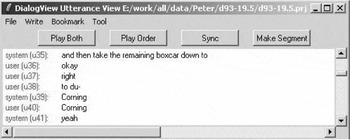
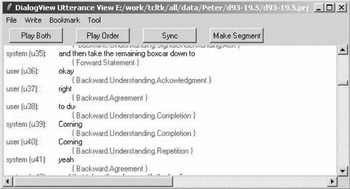
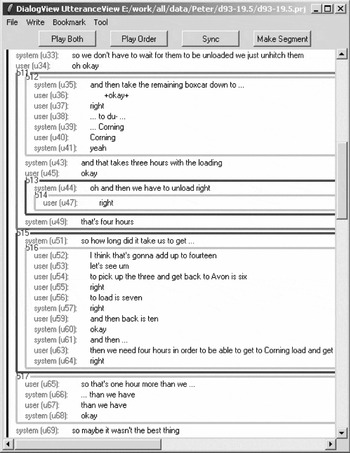
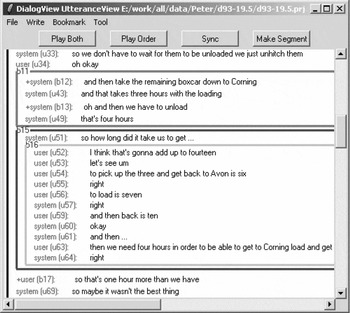
The annotations in WordView are utilized in building the next view, UtteranceView. This view shows the utterances of two speakers as if it were a script for a movie. To derive a single ordering of the utterances of the two speakers, we use the start time of each utterance as annotated in WordView. We refer to this process as linearizing the dialogue (Heeman and Allen Reference Heeman and Allen1995a). The order of the utterances should show how the speakers are sequentially adding to the dialogue, and is our motivation for defining utterances as being small enough so that they are not affected by subsequent speech of the other speaker. Figure 4 shows UtteranceView with the dialogue excerpt from Figure 3.
Utterance segmentation in UtteranceView.

UtteranceView abstracts away from the detailed timing information of the words that were said. Instead, it focuses on the sequence of utterances. This view is ideal for annotations that require a larger context of what is happening in the dialogue, such as speech act annotation. Of course, if users want to see the exact timing of the words in the utterances, they can examine WordView, as it is displayed alongside UtteranceView. Although both views have scroll bars that allow the user to independently position them anywhere in the dialogue, both have a navigation button (Sync) that repositions the other view to the same place. Furthermore, changes made in WordView are immediately propagated into UtteranceView, and hence users will immediately see the impact of their annotations. For example, if a user were to delete the utterance boundary between “to du-” and “Corning” in WordView in Figure 3, then “to du- Corning” would be shown as a single utterance in UtteranceView.
UtteranceView also includes playback buttons. To playback, the user first highlights a sequence of utterances with the mouse. The user can then press Play Both to hear the audio starting from the start time of the first highlighted utterance to the end time of the last highlighted utterance. This is similar to Play Both in WordView. The second playback, Play Order, is slightly different. It takes the linearization into account and dynamically builds an audio file in which each utterance in turn is concatenated together, and a 0.5 second pause is inserted between each utterance. This gives the user an idealized rendition of the utterances, with overlapping speech separated. In the example from Figure 4, utterances u38 through to u40 would be each played sequentially, rather than with overlapping between u38 and u39, and u39 and u40. By comparing the Play Both and Play Order playbacks, users can aurally check if their linearization of the dialogue is correct.
UtteranceView also has a print facility. This produces a postscript file with the script-like rendition of the dialogue as it is displayed in UtteranceView.
3.4 Annotating utterances
In either UtteranceView or WordView, users can annotate utterances with various tags. Although the notion of segmenting word sequences into utterances is built into the tool, what the utterances can be annotated with is not. The annotation scheme is specified in a configuration file. This makes the tool useful for users who want to apply different annotation schemes, and makes it easy to experiment while developing a scheme. Utterances can be annotated in either WordView or UtteranceView. WordView is more suitable for tags that depend on the exact timing of the words, or a very local context, such as whether an utterance is abandoned or incomplete (see Section 4.2). UtteranceView is more suitable for tags that relate the utterance to other utterances in the dialogue, such as whether an utterance is an answer, a statement, a question, or an acknowledgment. Here, the exact timing of the words is not important, but the larger context is, which UtteranceView shows. Figure 5 shows UtteranceView with the utterance tags displayed underneath each utterance. Whether an annotation tag can be used in WordView or UtteranceView (or both) is specified in the configuration file. Which view a tag is used in does not affect how it is stored in the annotation files.
UtteranceView with utterance tags displayed.

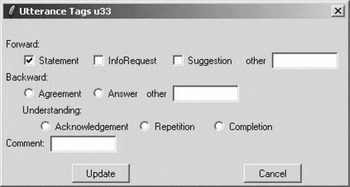
To illustrate how the configuration file works, we present a simplified version of the DAMSL annotation scheme (Allen and Core Reference Allen and Core1997; Core and Allen Reference Core and Allen1997). Utterances can be annotated in UtteranceView with tags of forward function, backward function, and a comment. Forward functions include statement, information request, and suggestion. Backward functions include agreement, answer, and understanding, which can be either acknowledgement, repetition, or completion. The following shows the specification of these tags in the configuration file, which is simply a text file that can be edited in any text editor.

The first line specifies what utterance tags should be selected in UtteranceView, namely Forward, Backward and Comment. The keyword anyof specifies that any number of the items on the righthand side can be annotated, while the keyword oneof (as in line 6) specifies that only one member of the righthand side can be selected. Tokens on the righthand side can be further decomposed, as we see for Forward in line 2. Tokens are assumed to be of type boolean unless otherwise specified; see, for example, UttrTags.Forward.Other in line 3. DialogueView will use the configuration file to create the annotation panel shown in Figure 6, which will pop up if the user double-clicks on an utterance in UtteranceView.
Sample utterance annotation panel.

An added feature of DialogueView is that it allows users to quickly locate particular words or utterance tags in a dialogue, just as one can search for words in a text file. Both WordView and UtteranceView support this search feature. This feature can be used to find interesting utterances or patterns. For example, one might be interested in analyzing discourse markers, such as “like” or “well”; users could search for the word they are interested in and quickly view every instance of it in the dialogue, along with the context surrounding the word. Likewise, if they are interested in all utterances tagged as completions, they can easily find these as well.
3.5 Grouping utterances into blocks
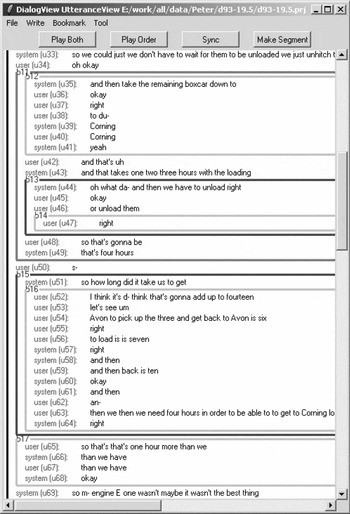
In UtteranceView, users can annotate hierarchical groupings of utterances. We call each grouping a block, and blocks can have other blocks embedded inside of them. This blocking function is similar to what N.b. provides (Flammia Reference Flammia1998), but rather than showing the structure with indentation and color, we use boxes to show the extent of each block. Figure 7 shows a dialogue excerpt with discourse blocks annotated. To create a segment, users highlight a sequence of utterances and then press the Make Segment button. Users can change the boundary of a block by simply dragging either the top or bottom edge of the box. The tool ensures that block edges are never moved in such a way as to cause two blocks to be interleaved, where one is not entirely contained in another.
Grouping utterances into blocks in UtteranceView.

DialogueView supports hierarchical blocks because many linguistic theories of discourse argue that conversation is organized as a hierarchical tree-like structure (e.g. Riechman-Adar 1984; Grosz and Sidner Reference Grosz and Sidner1986; Polanyi Reference Polanyi1988; Mann and Thompson 1988; Carberry and Lambert Reference Carberry and Lambert1999). These theories propose that speakers can continue talking about a topic, introduce a new subtopic, or finish with the current one. A few researchers, however, have proposed that speakers can interleave topics, as when comparing two different options (e.g. Ramshaw Reference Ramshaw1991; Rose, Di Eugenio, Levin and Van Ess-Dykema Reference Rose, Di, Levin and Van Ess-Dykema1995; and Hagen Reference Hagen1999); however, we currently do not support such structures.
3.6 Annotating blocks
Just as utterances can be tagged, so can discourse blocks. Many researchers of discourse theory have proposed that there are different types of discourse blocks. For instance, Carletta et al. (Reference Carletta, Isard, Isard, Kowtko, Doherty-Sneddon and Anderson1997) distinguish between dialogue games and transaction blocks; Traum and Hinkelman (Reference Traum and Hinkelman1992) classify blocks by their purpose, such as construct plan, summarize, elaborate, and clarify. In Grosz and Sidner's (1986) theory, discourse blocks also have a purpose associated with them. In DialogueView, users can define the block tags as appropriate for their own annotation scheme in the configuration file. In fact, in our annotation scheme, we annotate all of the aspects discussed above. A simplified version of our scheme is shown in the following.
Note that we use color to distinguish different block types; for example, red for transaction blocks and blue for dialogue games.
4 Further abstractions
In Section 3.3, we discussed how UtteranceView abstracts out the detailed timing information from WordView. UtteranceView allows users to focus on a larger context, which is often necessary for annotating utterance tags and discourse structure. In this section, we present additional mechanisms for abstracting away details, which we feel will help users better understand what is happening in a dialogue, and thus help them better annotate it for utterance tags and discourse structure.Footnote 3 We illustrate these abstractions on the dialogue excerpt from Figure 7. The abstractions of Section 4.1, 4.2 and 4.3 result in the UtteranceView shown in Figure 12. Sections 4.4 and 4.5 offer further abstractions yet. Note that all these abstractions are optional to users.
4.1 Overlapping speech
There are cases where both speakers talk at the same time. Capturing this overlap properly is critical for understanding what is happening in the dialogue. Hence, it is imperative that users can properly annotate overlap and that the tool properly displays the overlap. We classify overlap into three types, and provide a mechanism in DialogueView for effectively dealing with each type.
The first type of overlap is where the beginning of one utterance overlaps with the ending of the previous utterance. In Figure 3, the second instance of “Corning” (by the bottom speaker) overlaps slightly with the first instance of “Corning” (by the top speaker). Such overlaps are very common in dialogue, as speakers are very good at anticipating the end of the other speaker's turn (Beach Reference Beach1991). These overlaps are not problematic, as UtteranceView will display them in the proper order.
The second type of overlap is where the overlapping utterance is responding to what the other speaker is currently saying, but only the first part of it. For instance, in Figure 3, the bottom speaker said “okay” during the middle of an utterance, perhaps to tell the top speaker that everything was understood so far. However, in the UtteranceView of Figure 7, it may appear that the “okay” of u36 is acknowledging the entire utterance, rather than just a part of it. Hence, users could be misled as to what is happening. In order to remove this source of confusion, we have an utterance tag for this type of overlap, which we annotate in WordView. The following shows the specification of the overlap tag in the configuration file.
In order that users can easily see what has been tagged as overlap, we do the following: in WordView, we color the utterance segmentation marker in blue; in UtteranceView, we indent the utterance and put ‘+’ on either side (similar to the Childes scheme, cf. MacWhinney Reference MacWhinney2000).
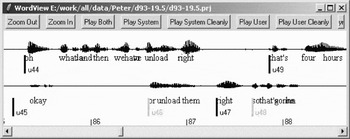
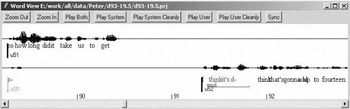
The third type of overlap occurs where one speaker is responding to something that the other speaker said, but responds after the other has resumed speaking. This is illustrated in Figure 8, where the top speaker finished utterance u43 and then paused for over a second. The bottom speaker then acknowledged the utterance with the “okay” of u45, but this happened a fraction of a second after the top speaker started speaking again with u44. As shown in Figure 7, the linearization of the dialogue has the “okay” of u45 following u44 as if it were acknowledging that utterance. One could tag u45 with the overlap tag. However, the fact that u45 overlaps with u44 is not critical in understanding what is occurring in the dialogue, as long as u45 is linearized before u44. This can be done in WordView by moving the start marker of u45 so that it is before the start of u44, as shown in Figure 9.Footnote 4 After the start marker has been moved, UtteranceView is automatically reformatted as shown in Figure 12.
Misleading utterance segmentation.

Altered start time for “okay” utterance.

In summary, overlapping speech can be handled in three ways. The overlap can be ignored if it is not critical for understanding what is going on in the dialogue; the utterance can be explicitly tagged as overlap; or the start time of the utterance can be changed so that the overlap does not need to be tagged.
For the audio playback of Play Order, if there is overlap that has not been explicitly tagged as such, the utterances are simply concatenated together according to the start time, as explained in Section 3.3. If the overlap is explicitly marked, we keep the overlap from the audio file. Users can thus aurally check if their treatment of the overlap is correct.
4.2 Incomplete utterances, abandoned utterances, and completions
In the previous section, we discussed how overlapping utterances can be annotated so that UtteranceView succinctly captures what is happening. In this section, we discuss three more utterance tags that can be used to better format UtteranceView, and thus help abstract away from the details in WordView. These tags are for abandoned utterances, incomplete utterances, and completions.
Abandoned: The speaker abandoned what they were saying and the speech had no impact on the rest of the dialogue. This mainly happens when one speaker loses the bid to speak next. Figure 7 shows a number of abandoned utterances, namely u42, u46, u48, u50, u58, and u62. Figure 10 shows two of these abandoned utterances: u46 and u48. In u46, the bottom speaker tried to help the top speaker finish the utterance, but abandoned the attempt, which can be heard by a decreasing volume in the speech. In u48, the bottom speaker started to speak, but then the top speaker cut in, and the bottom speaker gave up the turn.
Abandoned utterances.

Incomplete: The speaker did not make a complete utterance, either intonationally, syntactically, or semantically. Unlike the previous category, incomplete utterances do impact the dialogue behavior. Figure 3 has two incomplete utterances: u35 and u38. In both instances, the other speaker completes the utterance, which is a strong indicator that the utterance should not be tagged as abandoned.
Completions: The speaker attempted to complete the utterance of the other speaker. This is similar to the co-operative completions of Linell Linell (Reference Linell1998). Completions are often viewed as evidence that an utterance was understood (Schober and Clark Reference Schober and Clark1989), which is why we included them as a subtype of the Understanding tag (see Section 3.4). Figure 3 gives two examples of completions: u38 and u39.
Abandoned and incomplete utterances are tagged in WordView and completions in UtteranceView. However, regardless of where they are tagged, we want to use these tags to better format UtteranceView. Incomplete utterances are displayed with a trailing ellipsis marker “. . .” and completions with a preceding one. Figure 12 shows UtteranceView with these markings, which makes it much easier to see what is going on in the dialogue. As for abandoned utterances, these are not displayed in UtteranceView, as they do not impact the subsequent development of the dialogue. Hence, users do not need to see them in annotating utterance tags in UtteranceView and segmenting the discourse structure. Since abandoned utterances are not displayed in UtteranceView, they are also skipped in the audio playback of Play Order. The specification for these tags is given in the following, and makes use of the Completion tag as specified in Section 3.4.
4.3 Speech repairs
DialogueView has a special facility for annotating speech repairs. A speech repair is the disfluency where a speaker goes back and repeats or changes something that was just said (Heeman and Allen 1999). The following gives an example of a repair.
The reparandum is the speech that is being replaced, and the interruption point (ip) is the end of the reparandum. This can be followed by an optional editing term (et), such as “um”, “uh”, or “let's see”, which helps mark the repair. The piece of speech that replaces the reparandum is called the alteration.
As the annotation of speech repairs requires careful listening to the speech, and the repairs have strong interactions with utterance boundaries, their annotation is best done in WordView. To annotate a repair, the user highlights a sequence of words and then tags the sequence as a reparandum or an editing term. The user also chooses the type of repair. Figure 11 shows how speech repairs are displayed in WordView. The words in the reparandum are underlined and displayed in a different color. The words in the editing term are displayed in a similar manner.
Speech repair example.

The speech repair scheme is specified in the configuration file. The following specifies the scheme used by Heeman and Allen (Reference Heeman and Allen1999).
The first line says that there are three types of repairs: cancel repair (can), modify repair (mod), and abridge repair (abr). The next three lines specify the constituents of each type of repair, in terms of Reparandum and EditingTerm, which are reserved words.
After a speech repair is annotated in WordView, there is little need to show the repaired words in UtteranceView. Hence, we show only the cleaned up speech in which we have removed the reparandum and editing terms of speech repairs. This is what accounts for the difference between Figures 7 and 12 in utterances u33, u43, u44, u52, u54, u63, u65, and u69. As can be seen, the cleaned up utterances are easier to understand than the original ones. Note that after a user annotates a speech repair in WordView, UtteranceView is immediately updated, which lets the user visually verify their annotations.
Effect of overlap, abandoned, incomplete, and completion tags.

DialogueView also allows users to aurally verify their speech repair annotations. WordView has two playback buttons, Play System Cleanly and Play User Cleanly, that play the selected region of speech but with the annotated reparanda and editing terms skipped over. We have found this useful in deciding whether a speech repair is correctly annotated. If one has annotated the repair correctly, the edited speech will sound fairly natural. We conducted a human-subject experiment to investigate the usefulness of this playback (Yang, Strayer and Heeman 2003). Subjects were divided into two groups: the experimental group had access to the Play Cleanly buttons and the control group did not. After a short training period, both groups annotated repairs using WordView for six dialogue excerpts. The results showed that the experimental group did better in identifying the scope of repairs, giving a relative improvement of 29% in accuracy, although the performance in detecting repairs was not improved. In addition to aurally separating each utterance, the Play Order button in UtteranceView also skips over reparanda and editing terms.
There are a few cases in which one might want to see the speech repairs. First, speech repairs sometimes indicate lack of certainty on the part of the speaker, and one might want to see this conveyed in UtteranceView. Second, the alteration of a speech repair might have an anaphoric reference to an object introduced in the reparandum. For instance, in utterance u69 in Figure 7, the system said,“so engine E one wasn't maybe it wasn't the best thing.” When this is cleaned up in Figure 12, it becomes “maybe it wasn't the best thing.” The referent of “it” is no longer shown, which could mislead the user. This, however, happens very rarely. In any event, a user can still see exactly what happened by looking at WordView.
4.4 Closing blocks
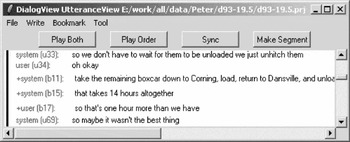
Even with removing abandoned utterances and cleaning up speech repairs, users can still be overwhelmed by the amount of detail in UtteranceView. This makes it difficult to understand the higher-level structure of the dialogue, which is needed for annotating discourse blocks. Consider utterances u35 to u41 in Figure 12 where the two speakers are collaborating in building an utterance. In our annotation scheme, we call this a grounding block (Clark and Shaeffer 1989; Traum and Nakatani Reference Traum and Nakatani1999). After the user has annotated it as a grounding block, it would be convenient if the block was replaced by a single utterance that captures the essence of what was said in the block: “and then take the remaining boxcar down to Corning,” as if spoken by the system. Utterances u65 to u68 also comprise a grounding block and can be replaced by “so that's one hour more than we have,” as if spoken by the user. Now consider utterances u44 and u47, which form a dialogue game. Here, the system asks, “oh and then we have to unload, right?” and the user responds with, “right.” Here again, it would be convenient to replace this with a single utterance: “oh and then we have to unload,” as if spoken by the system. Figure 13 shows the dialogue excerpt from Figure 12 but with the three example blocks closed (shown as blocks b12, b13, and b17).
Dialogue excerpt with three of the blocks closed.

As can be seen, closing the three annotated blocks greatly reduces the amount of detail that users see, which should help them find higher-level discourse blocks. Thus, for doing discourse segmentation, users can start by finding smaller discourse blocks and then work their way up to higher-level ones. Figure 14 shows the dialogue excerpt with blocks b11, b15 and b17 closed, which reduces the excerpt to only 6 lines. Note that for block b11, we took some liberties in composing the summary. Fewer lines and less text makes it easier for the user to keep track of what is going on in the dialogue.
Dialogue excerpt with all of the blocks closed.

To support the capability of closing blocks, each block is associated with a summary, which the user needs to fill in. When a block is closed, it is replaced by its summary, which is displayed as if it were said by the speaker who initiated the block. This is consistent with our previous work on initiative and control in dialogue (Strayer, Heeman and Yang 2003).Footnote 5 To re-open the block, the user can simply double-click on it.
4.5 BlockView
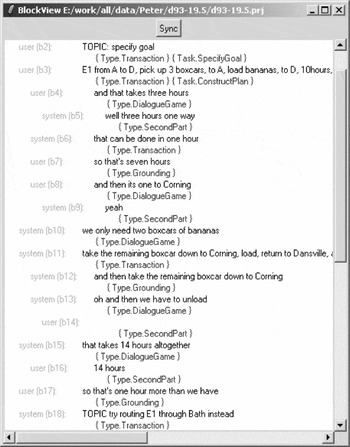
In addition to WordView and UtteranceView, we are experimenting with a third view, which we call BlockView. Figure 15 gives an example of this view. The bottom half of the figure corresponds to the dialogue excerpt that we have been using in our examples. As can be seen, this view shows the hierarchical structure of the discourse by displaying the summary for each block, indented appropriately. BlockView gives a very concise view of the dialogue. It is also convenient for navigating in the dialogue. By highlighting a line and then pressing Sync, the user can see the corresponding part of the dialogue in UtteranceView and WordView.
BlockView.

5 User study on abstraction of dialogue
Sections 4.1, 4.2 and 4.3 introduced advanced features of DialogueView that affect how a dialogue is displayed in UtteranceView by abstracting away lower-level details, such as speech repairs and abandoned speech. To test the usefulness of these abstractions, we conducted a user study (Yang et al. Reference Yang, Heeman and Strayer2004).
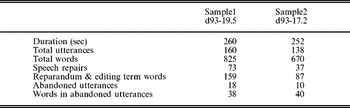
Two dialogues from the Trains corpus, d93-19.5 (Sample1) and d93-17.2 (Sample2), were chosen as the experimental materials. Two of the authors of this paper annotated the speech repairs, overlaps, utterance boundaries, and abandoned utterances for both dialogues. The frequencies of these phenomena are given in Table 1. A third person, who has a degree in English as a Second Language Education and was not previously involved with this project, was hired to construct eight comprehension questions for each dialogue. This person was given access to the dialogue via DialogueView, but in which nothing was abstracted out in UtteranceView (the full display style). He was also given the Trains maps so that he had complete and accurate domain information.
Statistics for the two dialogues used in testing

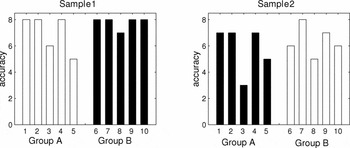
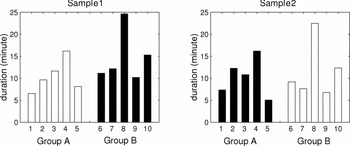
Subjects were asked to answer the comprehension questions by reading the dialogue transcripts in UtteranceView using different display styles: the full style and the abstracted style. Ten subjects, all of them graduate students, were randomly divided into two groups. Both groups worked on Sample1 first, and then Sample2. Subjects in Group A used the abstracted style for the first dialogue and the full style for the second, while subjects in Group B used the two styles in the opposite order. We set up the experiment this way to control for training effect, inter-personal differences, and dialogue differences. For each subject, we measured the accuracy gap and duration gap between the two dialogues:

The results for accuracy are given in Figure 16. One can see that all the subjects had more difficulty with the questions for Sample2 than for Sample1 (dialogue differences). One can also see that subjects 3 and 5 had more difficulty with the questions than the other subjects (inter-personal differences). By looking at the accuracy gap, these differences plus the training effect are removed. On average, Group A had an accuracy gap of 1.2, while Group B had an accuracy gap of 1.4. However, the difference between the two groups is not statistically significant (Wilcoxon ranksum, two-tail, p = 0.59), suggesting that accuracy is not affected by abstraction.
Accuracy results: black is for the full style and white for abstracted.

The results for duration are given in Figure 17. Here, Group A had an average duration gap of 5 seconds, while Group B had an average duration gap of 181 seconds. The difference between the two groups is statistically significant (t-test, one-tail, p = 0.012). Thus the abstracted style should allow annotators to more quickly understand a dialogue, enabling them to more quickly annotate aspects that require complete comprehension of a dialogue, such as utterance tags and discourse structure.
Duration results: black is for the full style and white for abstracted.

6 Comparing annotations
It is sometimes useful for several annotators to compare their annotations of a dialogue. First, it is useful for consensus annotation, where differences in annotations are compared and resolved in order to reduce the number of coding errors. Second, it is useful for training novice annotators, where novices compare their annotations against an expert's. Third, it is useful for refining an annotation scheme, where several experts compare their annotations to determine if there are ambiguities in their scheme.
We have built an annotation comparison tool (ACT) that displays the annotations from different users so that users can visually compare the differences in annotations (Yang et al. Reference Yang, Strayer and Heeman2002).
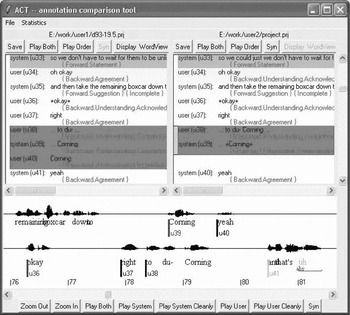
Figure 18 shows the interface for ACT. The main view for comparing annotations is a variation of UtteranceView. Each user's annotation is shown with blank lines inserted to keep identical utterances from different annotations aligned. A single scrollbar on the right controls views of all annotations simultaneously. Although we just show two users' annotations here, there is no limit on how many can be compared at the same time. ACT also includes WordView. Due to limited screen space, only one user's WordView is shown at a time. The button Display WordView in each UtteranceView sets whose WordView annotation is shown.
Interface of ACT.

6.1 Comparing speech repairs
ACT has several different modes. In one mode, it only highlights differences in the speech repair annotations. Utterances with different speech repairs will be highlighted in orange in each UtteranceView. This is shown in Figure 18 for utterance u33. To see whether the difference is in the type of the repair or in the extent of the repair, the users will need to look at their exact annotations in WordView.
6.2 Comparing utterance segmentations
Users can also have ACT highlight differences in utterance segmentation. Differences are shown in red in each UtteranceView. Rather than focusing on individual utterances, our strategy is to highlight regions of utterances that may have been affected by a single disagreement in the annotations. To illustrate, consider the two utterance segmentations in Figure 18, which correspond to the dialogue excerpt in Figure 3. For simplicity, we refer to utterances in the first user's annotation with a superscript ‘A’, and the second user's with a ‘B’. Clearly, utterance u38A is different than u38B because it contains different words. Utterance u40A has no corresponding utterance in the second user's annotation, so it is clearly different. We also view utterances u39A and u39B as being different. This is because the preceding context of the utterances are different. The preceding context of u39A does not include “Corning”, while the preceding context of u39B does. ACT marks utterances as different if they either do not have the same content or their preceding context is different. Hence, the regions of utterances u38A to u40A and u38B to u39B are marked as different. Our definition of what constitutes different utterances results in fewer regions being marked than when utterances are marked individually.
6.3 Comparing utterance tags
ACT can also highlight differences in utterance tags. Utterance u34 is highlighted in yellow as a tag difference in Figure 18; the first user annotated it as an agreement and the second as an acknowledgement. Note that differences in whether utterances are annotated as overlap, incomplete, or abandoned also count as utterance tag differences.
When comparing utterance tags, users might want to focus on major distinctions and ignore minor ones. Users specify which distinctions should be ignored in the configuration file. This is especially useful when developing an annotation scheme, as it allows users to focus on the glaring differences and temporarily ignore the more subtly differing aspects. For example, the difference between acknowledgement and agreement can be ignored by specifying the following rule:
More formally, suppose that an utterance has tags A from one user and B from another user. The tags are treated as being identical if the following holds:
As a second example, users might want to only highlight differences where they disagreed on whether an utterance had a forward or backward function. This can be specified by the following two rules, where ‘*’ can match any string:
6.4 Comparing blocks
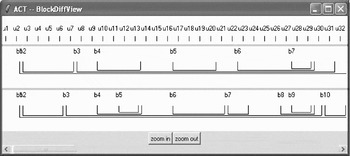
Even though UtteranceView for each user can display discourse blocks, we have found it useful to include a special view for comparing discourse segmentation, which we call BlockDiffView and show in Figure 19. Before comparing block segmentations, ACT requires that there be no differences in the utterance segmentation (and linearization), but differences in speech repairs and utterance tags are allowed. BlockDiffView shows the utterance numbers along the top, with the discourse blocks of each user displayed underneath.
Block comparison in the BlockDiffView.

To help users compare their block annotations, we categorize each block B as one of three types:
Same: There is a corresponding block in each of the other users' annotations that has the same start and end utterances. Examples in Figure 19 are b4 and b7 in the top user's annotation, which are the same as b4 and b9 in the bottom user's annotation respectively. These blocks are displayed in black.
Inconsistent: There is a block B′ in another user's annotation that overlaps with B but B′ does not embed nor is embedded in B (Strayer et al. Reference Strayer, Heeman, Yang, Kuppevelt and Smith2003). Examples in Figure 19 are b2, b3, and b6 in the top user's annotation, and b3, b7, and b10 in the bottom user's annotation. This is similar to the crossing brackets metric for parser evaluations (Harrison et al. Reference Harrison, Abney, Fleckenger, Gdaniec, Grishman, Hindle, Ingria, Marcus, Santorini and Strzalkowski1991). An inconsistent block is displayed in red.
Consistent: All other blocks. Examples in Figure 19 are b5 in the top user's annotation, and b2, b5, and b8 in the bottom user's annotation. A consistent block is displayed in yellow.
Ideally, blocks from different users' annotations would be the same. However, when a block is not the same, but it is consistent, this could just mean that the users are annotating at different levels of granularity. On the other hand, when a block is inconsistent, it could mean that the users have very different interpretations of what is going on in the dialogue, which is a much more serious concern. Distinguishing inconsistent blocks from consistent ones helps users focus on more important differences.
As one of the uses of ACT is for consensus annotation, we allow users to change their speech repairs, utterance segmentation, and utterance tags in ACT, similarly as can be done in DialogueView. Currently ACT does not support block modifications.
7 Implementation
DialogueView is written in Incr Tcl/Tk. Incr Tcl/Tk allows object-oriented programming, which helps us better manage the growing complexity of DialogueView. This also enabled us to reuse pieces of the code in building ACT. A couple of classes of ACT are derived from those of DialogueView, which not only saved us a lot of effort but also helps to guarantee consistency between the two tools. We use the snack package for audio support (Sjölander and Beskow Reference Sjölander and Beskow2000); hence DialogueView supports audio file formats of WAV, MP3, AU, and others.Footnote 6 DialogueView has been tested on Microsoft Windows (2000 and XP) and Redhat Enterprise Linux.
8 Extensibility
After users have annotated a dialogue, they might want to analyze the annotations. DialogueView does not include any analysis capability; however, similar to a number of other annotation tools (McKelvie et al. 2001; Bernsen et al. 2002), it does use XML for storing the annotations. Any analysis tool capable of reading in XML files can thus be used.
DialogueView can be customized for a specific project through a configuration file; however, the amount of customization is limited. Hence, we also allow users to write their own plug-in modules in Tcl/Tk that can be run from inside of DialogueView. For example, for one of our projects, we wrote a plug-in module to search for utterances that were annotated with a specific set of tags and that were in a specific context. Of course, this option requires users have good programming skills and an understanding of the internal structure of DialogueView (Bernsen et al. 2002).
9 Conclusion
In this paper, we described DialogueView, an annotation tool for segmenting dialogue into utterances, annotating speech repairs, coding utterance tags, and creating hierarchical discourse blocks. The tool presents the dialogue to users with multiple views. Each view has a corresponding abstraction, allowing users to see what is going on in detail and to see the higher-level structure. The abstractions not only abstract away from the exact timing of the words, but also can skip some of the words, whole utterances, and even simplify discourse blocks to a one-line summary. Depending on the annotation task, users can choose different abstractions to display in a view. These features help users better understand and annotate dialogue.
We have used DialogueView in a couple of projects. We have used it to annotate twelve dialogues from the Trains corpus (totalling more than 1 hour of conversation). We have also used it in our project on multi-threaded dialogues (for which we have currently collected and annotated three hours of conversation) (Heeman et al. Reference Heeman, Yang, Kun and Shyrokov2005). We have found DialogueView to be reliable and easy to use. We are still developing DialogueView; in particular, we are refining its support for discourse blocks, improving the audio playback facilities, making it more customizable, and adding functionality to display annotations of other modalities besides speech.
DialogueView is freely available for research and educational use. Users should first install a standard distribution of Tcl/Tk, such as ActiveTcl (http://www.tcl.tk), and then download DialogueView from http://www.cslu.ogi.edu/DialogueView. The distribution also includes some examples of annotated dialogues.
In addition to describing an annotation tool, the purpose of this paper is to advocate the use of abstraction in an annotation tool, supported by multiple views. Abstraction emphasizes certain information and hides details that are not directly relevant, which helps users focus on their annotation task. Moreover, the annotations themselves are used in formatting the views, and hence serve the additional purpose of letting users double-check their work; if the abstraction does not make sense, there might be problems with the annotations. Ideally, these design philosophies would be built into a toolkit so that they could be easily used for any annotation task with any type of human interaction.