Cambridge Spiral Annotations and Groups
Cambridge Spiral: Creating Annotations
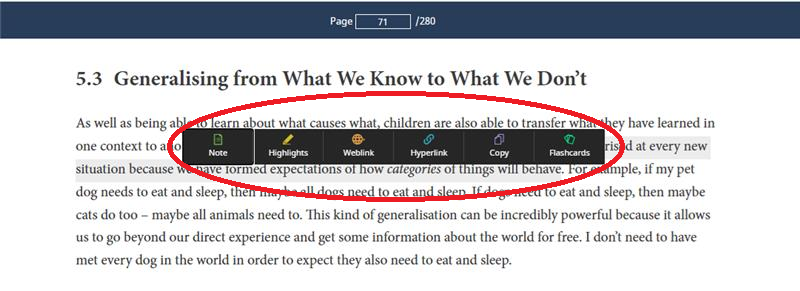
To use any of the annotation features, drag your cursor over the text you wish to highlight and the pop-up will appear with the following options:
- Note – a box will appear where you can enter plain text notes
- Highlight – the text will be highlighted on page, several colours are available
- Weblink – add a link that takes you to a website if you click on it
- Hyperlink – link elsewhere in the eTextbook you are currently reading
- Flashcards - add a two sided flashcard to aid in revision and recall
- Copy - allows you to copy up to 20% of the text in each book, where you have access. You can paste the text into another document or print your selection (up to your print allocation limit for each book).
To use any of the annotation features, drag your cursor over the text you wish to highlight and the pop-up will appear with the following options:
- Note – a box will appear where you can enter plain text notes
- Highlight – the text will be highlighted on page, several colours are available
- Weblink – add a link that takes you to a website if you click on it
- Hyperlink – link elsewhere in the eTextbook you are currently reading
- Flashcards - add a two sided flashcard to aid in revision and recall
- Copy - allows you to copy up to 20% of the text in each book, where you have access. You can paste the text into another document or print your selection (up to your print allocation limit for each book).
Cambridge Spiral: Editing Annotations
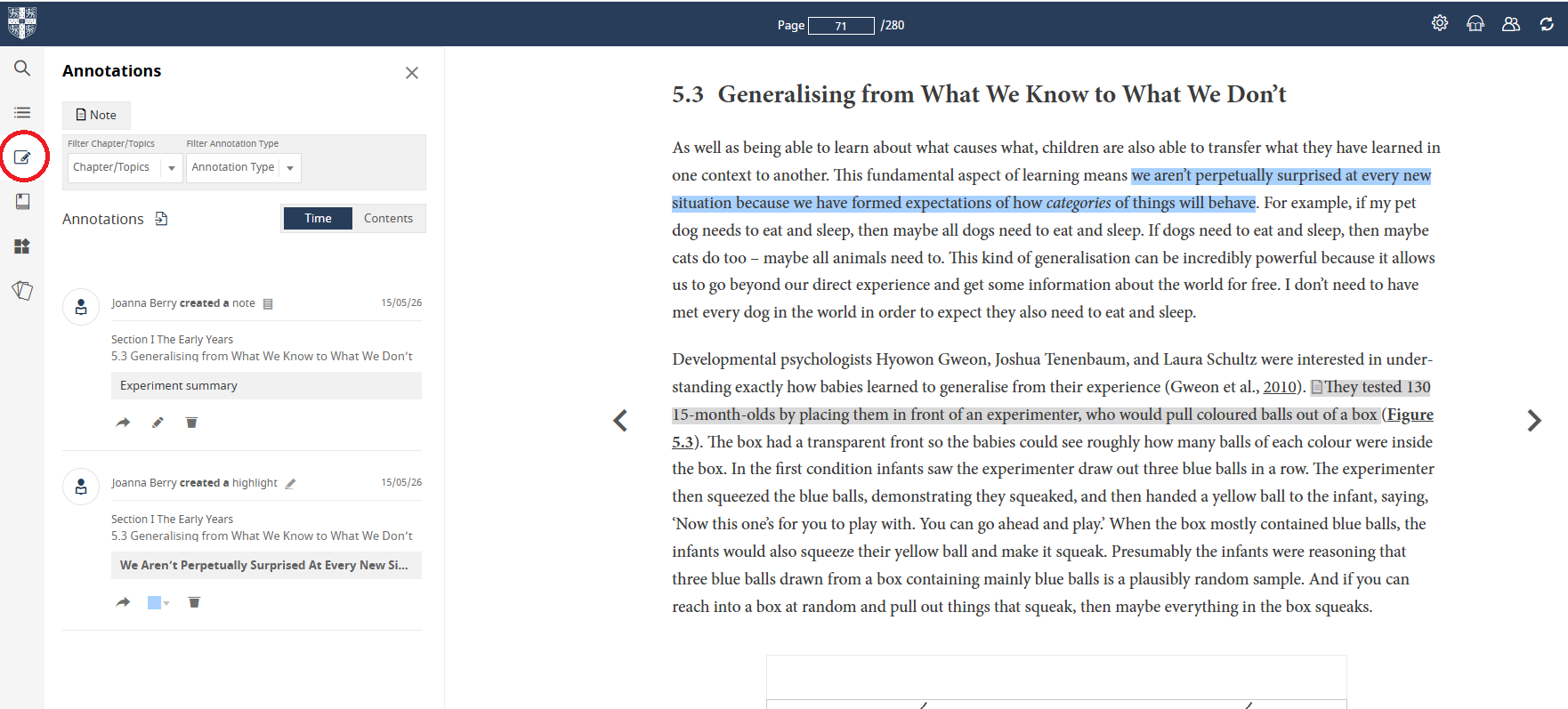
You can view, edit or delete annotations from the annotations menu on the left hand side.
You can view, edit or delete annotations from the annotations menu on the left hand side.
Cambridge Spiral: Group Annotations
Instructions on groups and annotations can also be found in video format via our Group Annotations demo. Group mode enables instructors to add some notes to the textbook and then share the annotations with a student group.
Creating a Group
Click on the Groups icon in the top right hand corner.
See below to find out how to enable group annotation sharing.

Instructions on groups and annotations can also be found in video format via our Group Annotations demo. Group mode enables instructors to add some notes to the textbook and then share the annotations with a student group.
Creating a Group
Click on the Groups icon in the top right hand corner.
See below to find out how to enable group annotation sharing.
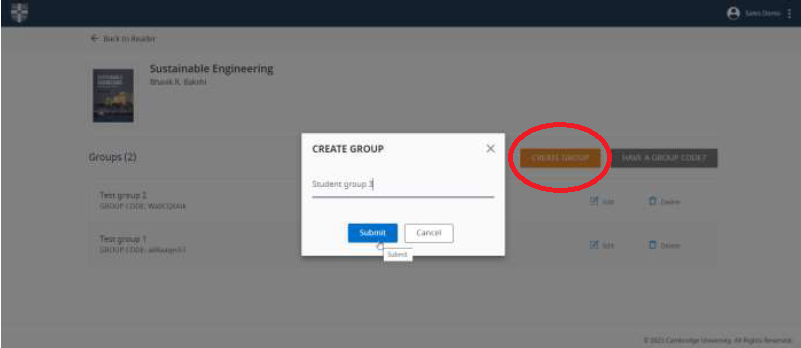
Once you are in the Group function, you will see the orange button Create Group. Please note: this button will only appear for instructors at your institution who have an instructor account. Student users are not able to create groups and cannot share annotations.
Click the Create Group button, then enter a name for your group and press Submit.
Your group will be created with a Group code displayed underneath the book image on the left. You can now provide this code number to your student group.
Once you are in the Group function, you will see the orange button Create Group. Please note: this button will only appear for instructors at your institution who have an instructor account. Student users are not able to create groups and cannot share annotations.
Click the Create Group button, then enter a name for your group and press Submit.
Your group will be created with a Group code displayed underneath the book image on the left. You can now provide this code number to your student group.
Bulk Annotation Sharing
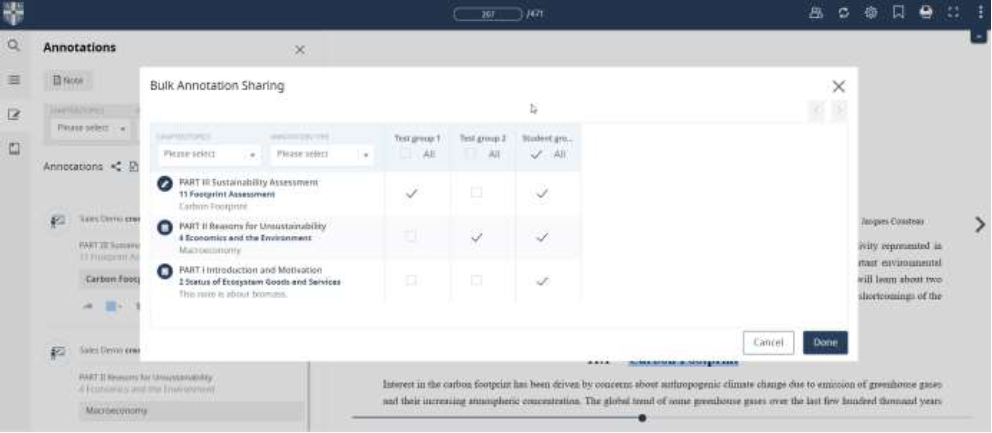
To select which annotations you would like to share with your group. Click on the annotations icon on the navigation panel on the left hand side of the screen (see Editing Annotations section above). Then click on the share icon.
The Bulk Annotation Sharing pop-up will appear. Here, you can choose which of your annotations appear within each of your Groups. You can choose to select them all easily by clicking All below the group name, if you wish to provide all of your annotations to that group.
Note: Instructors can share codes and work on annotations together
See below for instructions to share with your students so that they can access the group annotations.
To select which annotations you would like to share with your group. Click on the annotations icon on the navigation panel on the left hand side of the screen (see Editing Annotations section above). Then click on the share icon.
The Bulk Annotation Sharing pop-up will appear. Here, you can choose which of your annotations appear within each of your Groups. You can choose to select them all easily by clicking All below the group name, if you wish to provide all of your annotations to that group.
Note: Instructors can share codes and work on annotations together
See below for instructions to share with your students so that they can access the group annotations.
Group Mode: Accessing a group using an Group Code
Accessing Group Annotations using a Group Code
Login to your Cambridge Aspire account
Navigate to the landing page of the textbook on the Higher Education website
Click the Read Online button.
This will take you into the Cambridge Spiral eReader. Click on the Groups icon (two overlapping figures) in the top right hand corner.
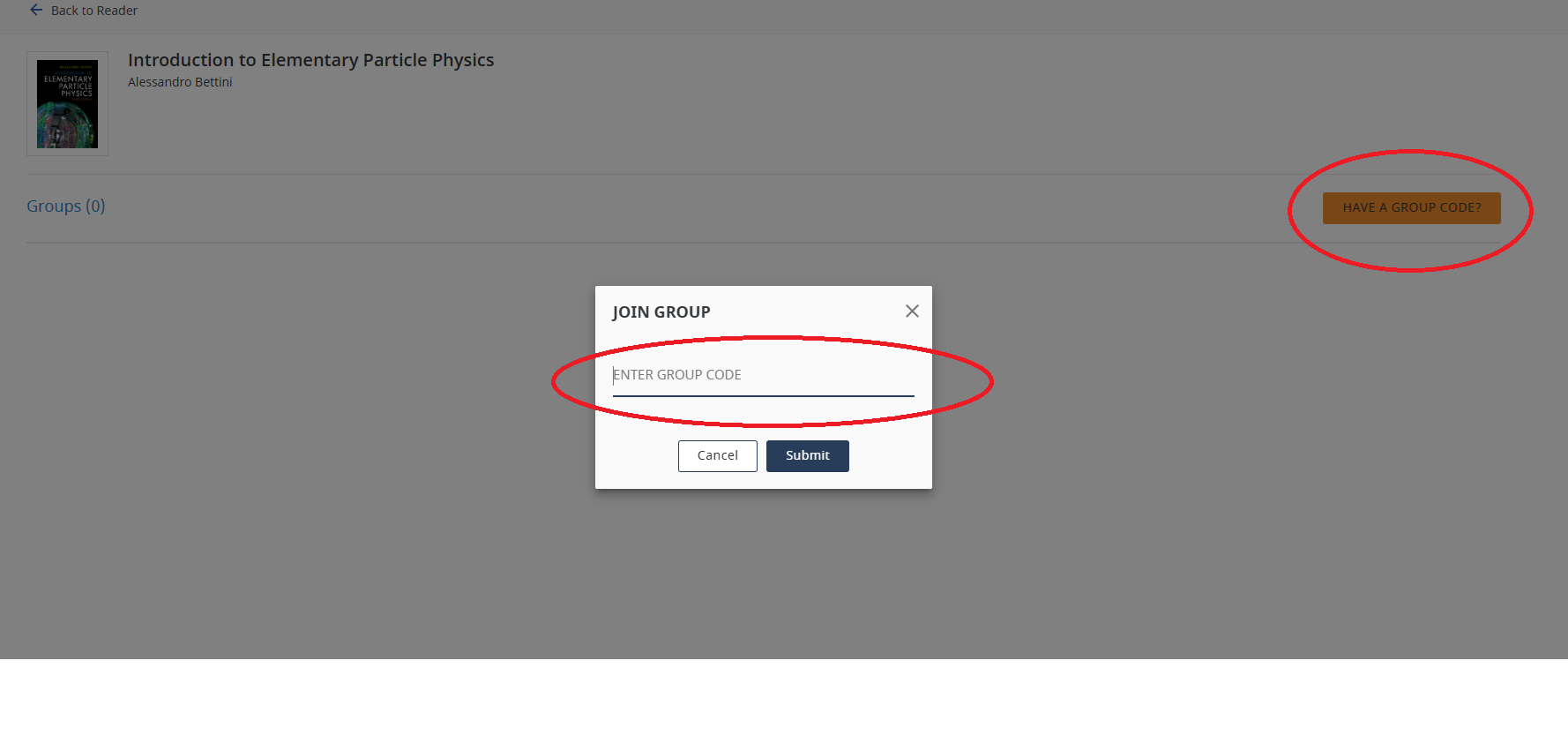
Select Have a Group Code?
Enter the Group Code that has been supplied to you in the dialog box that appears. Once this has been entered, you will be able to see the instructor annotations within the eTextbook.
Note: Your own personal annotations will be private and will not be shared with the Group.
Next section: Contacts & More Information
Accessing Group Annotations using a Group Code
Login to your Cambridge Aspire account
Navigate to the landing page of the textbook on the Higher Education website
Click the Read Online button.
This will take you into the Cambridge Spiral eReader. Click on the Groups icon (two overlapping figures) in the top right hand corner.
Select Have a Group Code?
Enter the Group Code that has been supplied to you in the dialog box that appears. Once this has been entered, you will be able to see the instructor annotations within the eTextbook.
Note: Your own personal annotations will be private and will not be shared with the Group.
Next section: Contacts & More Information