Explore features of the Cambridge Aspire website
Bookmarking
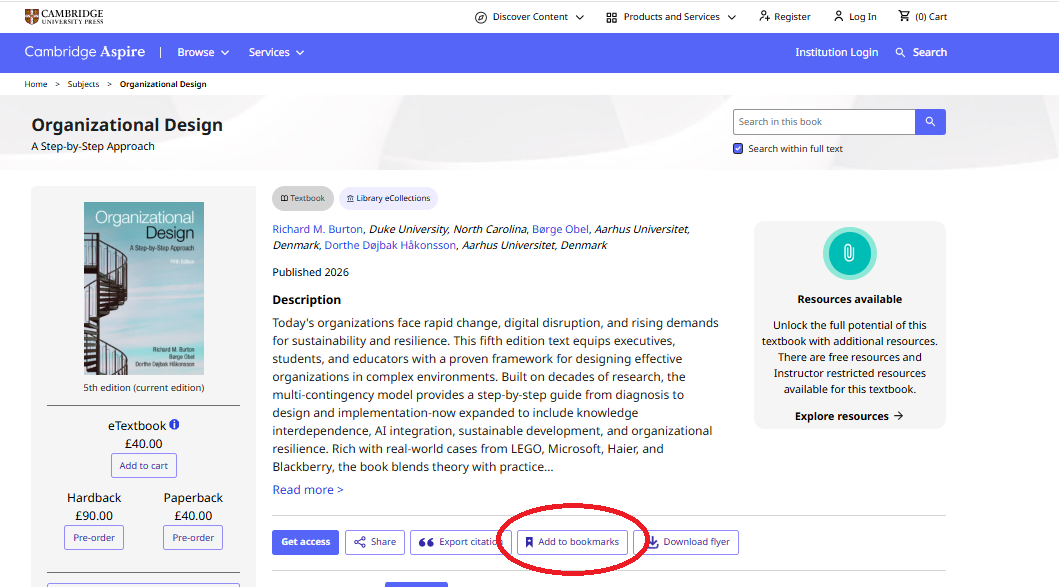
You can select Add to Bookmarks to enable you to easily find the textbook you are interested in again. You must be logged in to a personal account to use bookmarks.
You can find your bookmarked textbooks in My Account at the top of the page (if you are logged in).
You can select Add to Bookmarks to enable you to easily find the textbook you are interested in again. You must be logged in to a personal account to use bookmarks.
You can find your bookmarked textbooks in My Account at the top of the page (if you are logged in).
Citations
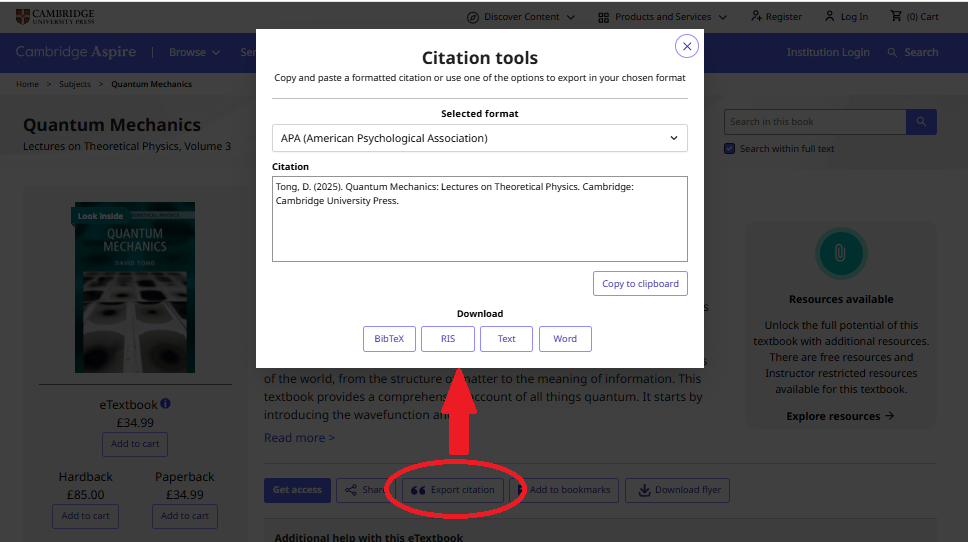
You can get a citation for any book from the Export Citation button under the main Description on the book's landing page. Clicking the button generates a citation tool pop-up where you can change the citation format by selecting from the drop-down menu.
You can copy the citation text to your clipboard, or export to various file types.
You can get a citation for any book from the Export Citation button under the main Description on the book's landing page. Clicking the button generates a citation tool pop-up where you can change the citation format by selecting from the drop-down menu.
You can copy the citation text to your clipboard, or export to various file types.
Linking textbooks in Learning Management Systems
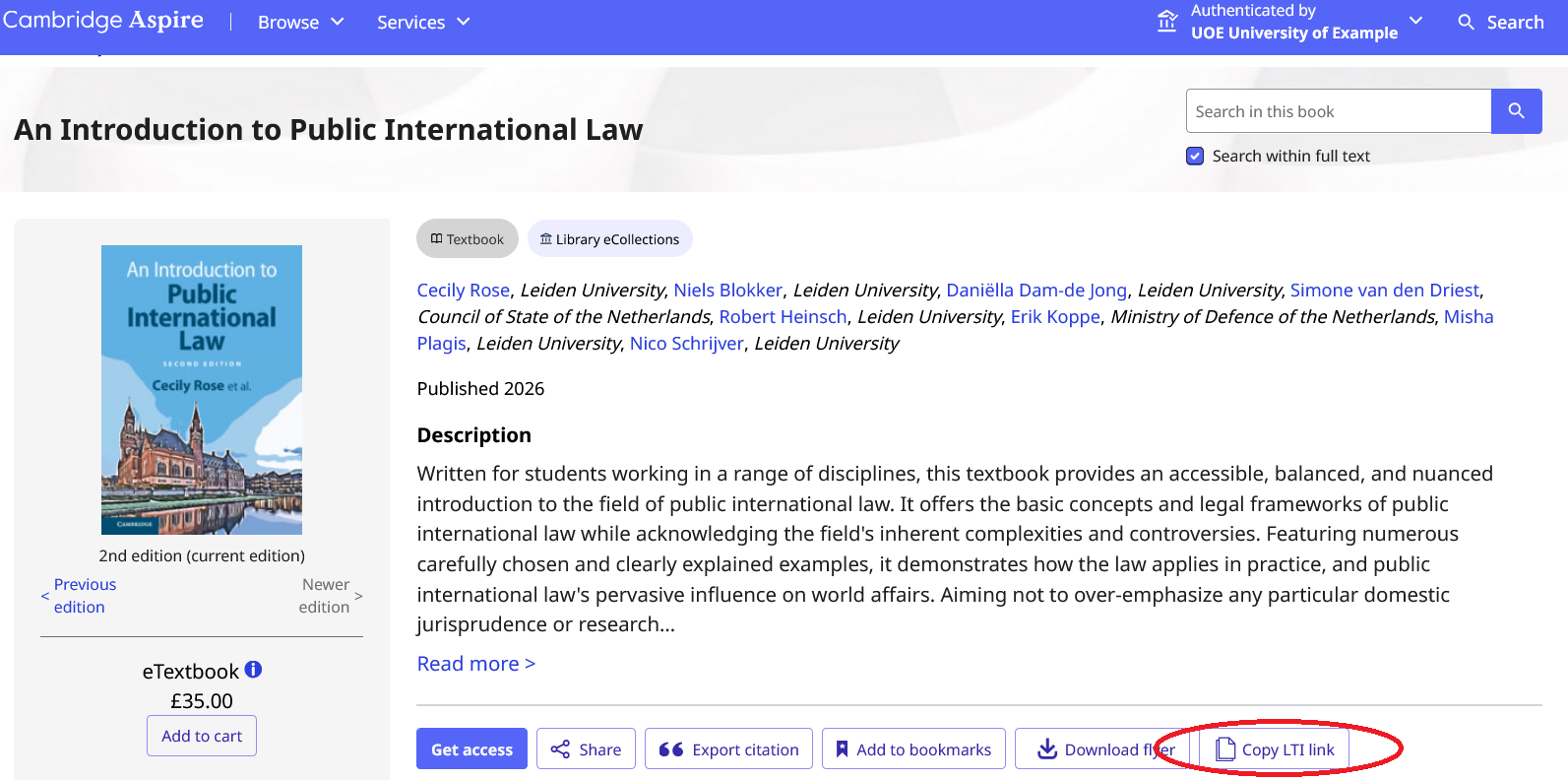
When you are logged in as an instructor, the Copy LTI link button appears on the textbook landing page. You can use this functionality to link the eBook directly within your institutional Learning Management System (e.g. Blackboard, Moodle and Canvas). There will be an automated check to ensure that you have access to the book that you have selected. You will then be given a link that you can add to your LMS to allow students to access the content. If you do not have access you will be given options to resolve this before receiving the link.
Note: You must be logged in and registered as an instructor or librarian to use this functionality. Find out more about this from our Instructor FAQ and Librarian FAQ pages.
When you are logged in as an instructor, the Copy LTI link button appears on the textbook landing page. You can use this functionality to link the eBook directly within your institutional Learning Management System (e.g. Blackboard, Moodle and Canvas). There will be an automated check to ensure that you have access to the book that you have selected. You will then be given a link that you can add to your LMS to allow students to access the content. If you do not have access you will be given options to resolve this before receiving the link.
Note: You must be logged in and registered as an instructor or librarian to use this functionality. Find out more about this from our Instructor FAQ and Librarian FAQ pages.
Deep links: Link to eBook content in your syllabus
Please note: You must be logged in and registered as an instructor (or librarian) to use deep links. See our Deep Links FAQ
Deep link functionality helps instructors to easily share content with students, and it does this in a very granular way. As an instructor, when you are creating a syllabus, if you would like your students to use a particular chapter of a book, you can choose to include the deep link for that chapter in the course syllabus. This will enable students to simply click on the link and they will be directed to the exact chapter that you would like them to read.
How to find deep links
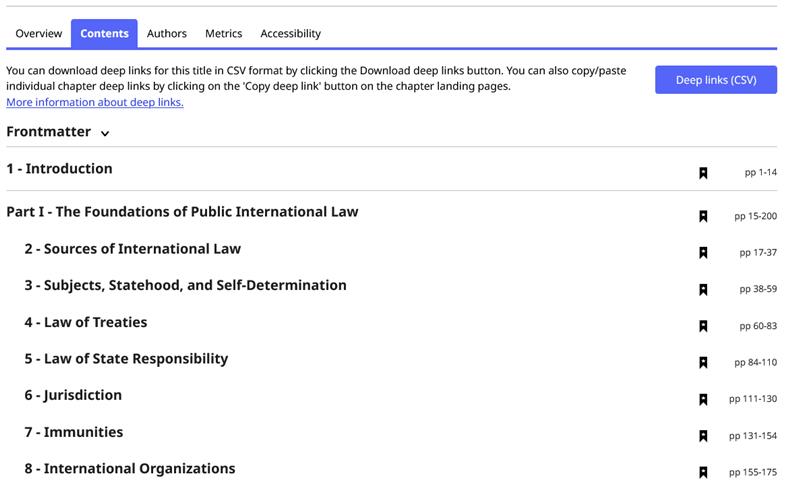
On a book landing page, there is a tab to view ‘Contents’. When you open this tab, you will have the option of downloading a csv file with deep links for all the chapters in the book. If you wish to link to only one or two chapters, you can get these links by clicking on the title of the desired chapter. You will be taken to that chapter's landing page, where you will find the Copy Deep Link button for that particular chapter on the right hand side of the row of buttons under the author name(s).
Please note: You must be logged in and registered as an instructor (or librarian) to use deep links. See our Deep Links FAQ
Deep link functionality helps instructors to easily share content with students, and it does this in a very granular way. As an instructor, when you are creating a syllabus, if you would like your students to use a particular chapter of a book, you can choose to include the deep link for that chapter in the course syllabus. This will enable students to simply click on the link and they will be directed to the exact chapter that you would like them to read.
How to find deep links
On a book landing page, there is a tab to view ‘Contents’. When you open this tab, you will have the option of downloading a csv file with deep links for all the chapters in the book. If you wish to link to only one or two chapters, you can get these links by clicking on the title of the desired chapter. You will be taken to that chapter's landing page, where you will find the Copy Deep Link button for that particular chapter on the right hand side of the row of buttons under the author name(s).
Resources
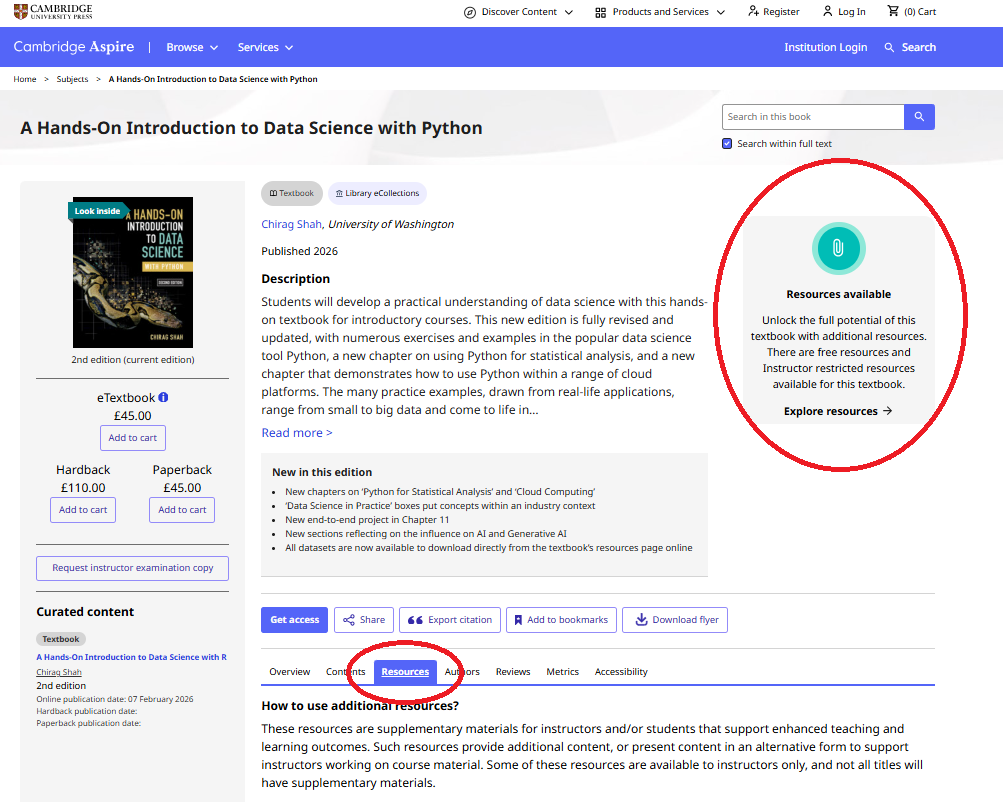
Resources are supplementary materials available to use with textbooks. If a textbook has a Resources tab under the Description, then, Resources exist for that title and can be viewed via that tab. Resources can also be accessed through the 'Resources available' widget to the right of the Description, under the search box.
Clicking the Resources button will take you to an intermediate page that gives an overview of the different kinds of resources. There are two types of resources: General Resources, which are free to download without restrictions, and Instructor Resources which require the user to be validated as an instructor. Note: If the Resources tab and widget are not visible, then no resources are available for that title.
To proceed to the resources themselves click the View Resources button.
Resources are supplementary materials available to use with textbooks. If a textbook has a Resources tab under the Description, then, Resources exist for that title and can be viewed via that tab. Resources can also be accessed through the 'Resources available' widget to the right of the Description, under the search box.
Clicking the Resources button will take you to an intermediate page that gives an overview of the different kinds of resources. There are two types of resources: General Resources, which are free to download without restrictions, and Instructor Resources which require the user to be validated as an instructor. Note: If the Resources tab and widget are not visible, then no resources are available for that title.
To proceed to the resources themselves click the View Resources button.
Access General and Locked Resources
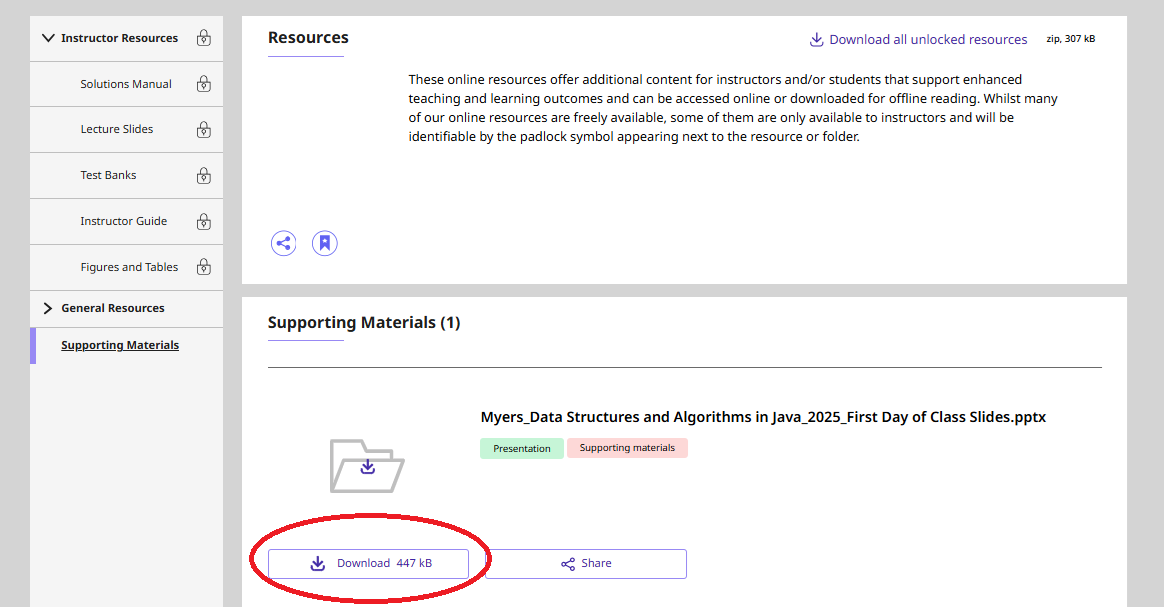
Many resources, such as supporting materials for students can be downloaded freely. You can use the download button to save the file to your device or use the share button to send the resource page to a colleague or fellow student.
Other resources (indicated by a padlock icon) can only be downloaded by registered instructors. See next for more information.
Many resources, such as supporting materials for students can be downloaded freely. You can use the download button to save the file to your device or use the share button to send the resource page to a colleague or fellow student.
Other resources (indicated by a padlock icon) can only be downloaded by registered instructors. See next for more information.
Locked Instructor Resources
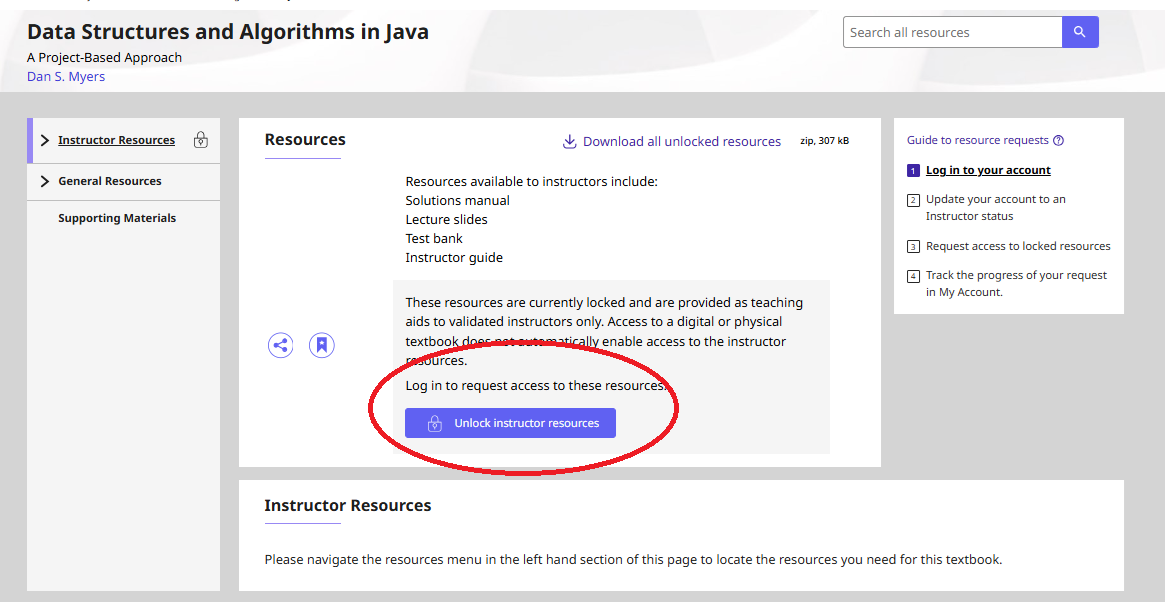
You must be logged in to an instructor account to request instructor resources for a textbook. If you have not yet requested access to the instructor resources, you may see a padlock symbol next to the resources, you will need to request access by clicking ‘Unlock instructor resources’. (If you need to be set up as an instructor after you have registered for an account, please go to your Account Settings within the Account Dashboard and select the “I am an Instructor” box underneath your organisation name).
You will receive a response to your request via your registered email address. If you have any queries about instructor resource requests, please email collegesales@cambridge.org for The Americas or lecturers@cambridge.org for the rest of the world.
Before you have access the resources will be locked and show a padlock icon next to the instructor resources. When you have been provided with access, the padlock will be replaced by a green tick.
Further information on requesting Instructor resources can be found in our FAQs.
Next section: Cambridge Spiral app.
You must be logged in to an instructor account to request instructor resources for a textbook. If you have not yet requested access to the instructor resources, you may see a padlock symbol next to the resources, you will need to request access by clicking ‘Unlock instructor resources’. (If you need to be set up as an instructor after you have registered for an account, please go to your Account Settings within the Account Dashboard and select the “I am an Instructor” box underneath your organisation name).
You will receive a response to your request via your registered email address. If you have any queries about instructor resource requests, please email collegesales@cambridge.org for The Americas or lecturers@cambridge.org for the rest of the world.
Before you have access the resources will be locked and show a padlock icon next to the instructor resources. When you have been provided with access, the padlock will be replaced by a green tick.
Further information on requesting Instructor resources can be found in our FAQs.
Next section: Cambridge Spiral app.