How to start reading books
Reading a book (Cambridge Spiral eReader)
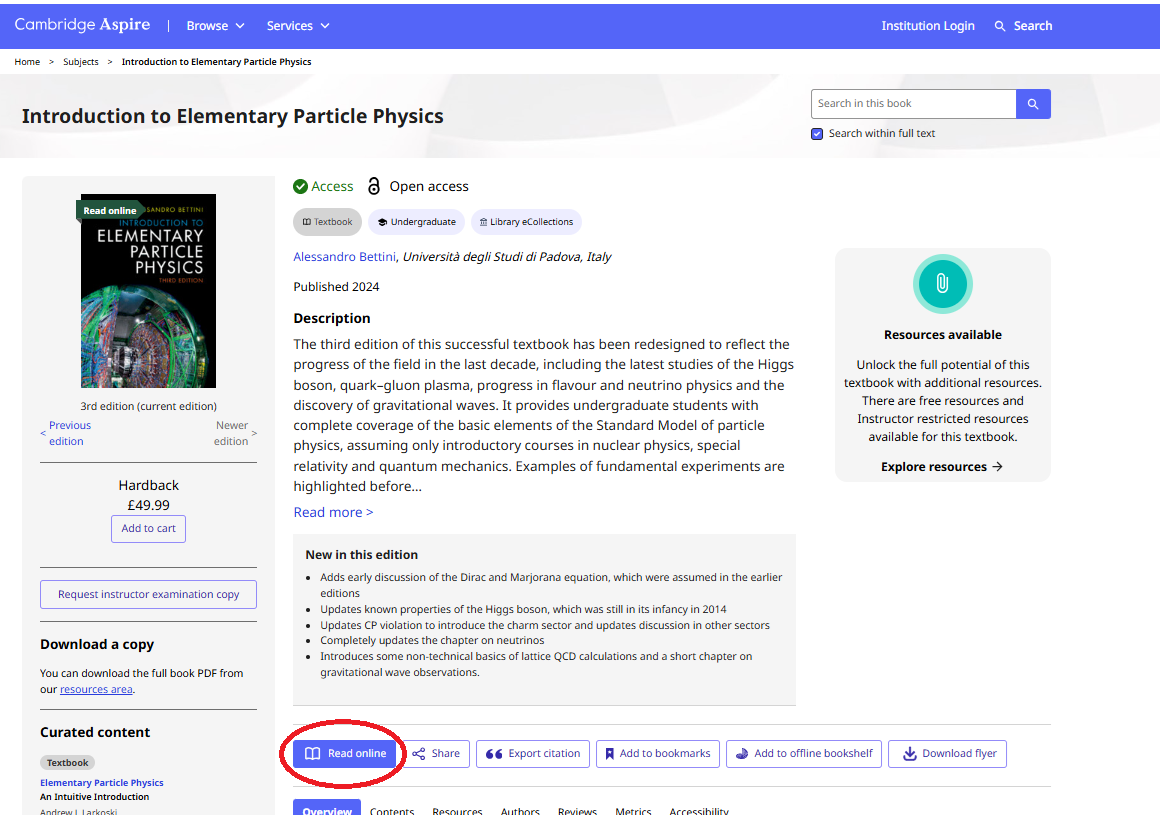
Once you have selected a textbook, follow the next steps to start reading online. You can also watch instructions in a video format. To access the Spiral eReader, click the Read online button on the book landing page.
Learn about all the features of Cambridge Spiral, including the many benefits of registering for an account on our Cambridge Spiral guide page, where you can also download the Spiral app for desktop or mobile devices.
Once you have selected a textbook, follow the next steps to start reading online. You can also watch instructions in a video format. To access the Spiral eReader, click the Read online button on the book landing page.
Learn about all the features of Cambridge Spiral, including the many benefits of registering for an account on our Cambridge Spiral guide page, where you can also download the Spiral app for desktop or mobile devices.
Guest Mode
If you do not have a Cambridge Aspire account, but you do have institutional access, you can read books using ‘guest’ access on the online web reader.
The guest login is only available for reading textbooks with internet access (i.e. it does not allow offline reading).
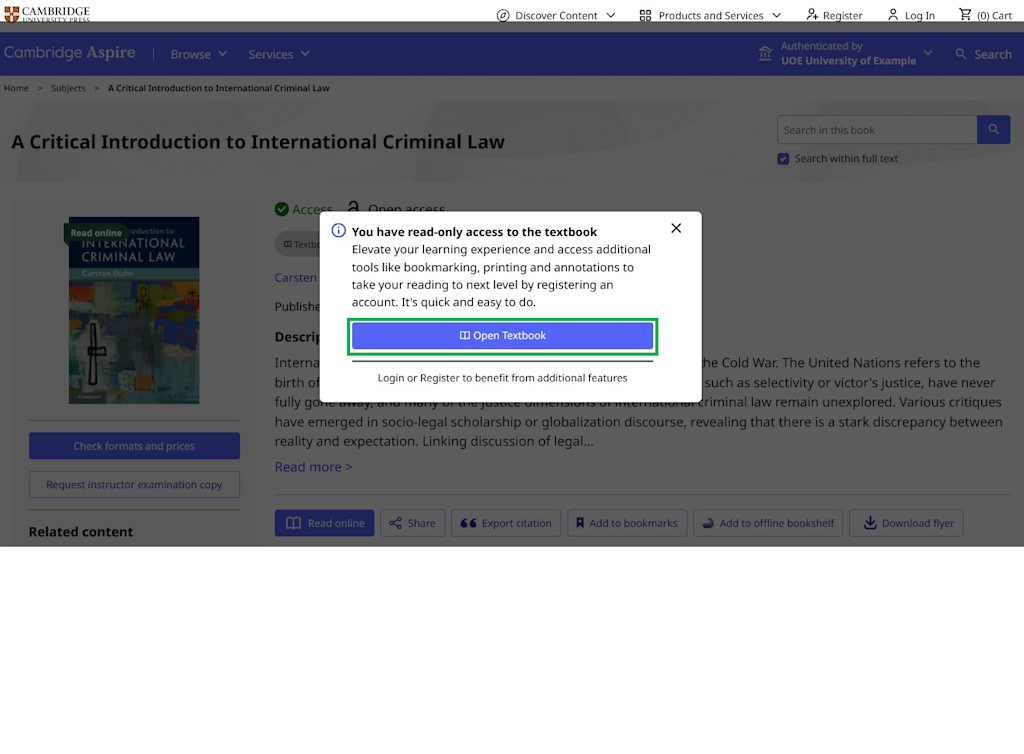
Guest access does not provide access to the advanced functionality of Cambridge Spiral such as annotations, bookmarking, remember your position, printing and copying. Find out more about Cambridge Spiral.
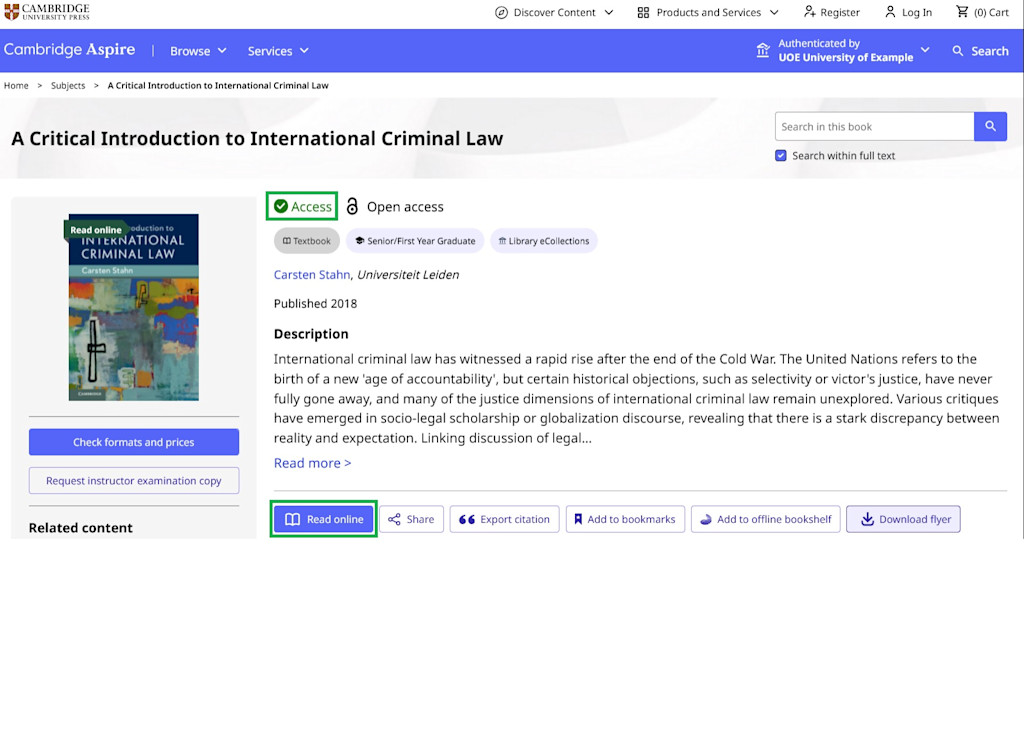
To proceed with guest mode, Log onto your university’s library system in the usual way (via your institution’s IP authentication, or via login options such as Open Athens, Shibboleth) and once you see the green access tick you can click the Read Online button to open the book.
If you do not have a Cambridge Aspire account, but you do have institutional access, you can read books using ‘guest’ access on the online web reader.
The guest login is only available for reading textbooks with internet access (i.e. it does not allow offline reading).
Guest access does not provide access to the advanced functionality of Cambridge Spiral such as annotations, bookmarking, remember your position, printing and copying. Find out more about Cambridge Spiral.
To proceed with guest mode, Log onto your university’s library system in the usual way (via your institution’s IP authentication, or via login options such as Open Athens, Shibboleth) and once you see the green access tick you can click the Read Online button to open the book.
Read books using your Cambridge Aspire account
To access the full benefits of the Cambridge Spiral eReader, such as offline reading, you should log in to the Cambridge Aspire website with your personal account. You can create an account via the Register option if you do not already have one.
Click the Log in button at the top of the page and then enter the details for your Cambridge Aspire account.
Once you locate a title that you can access you can read the book by clicking on the Read Online button on the book landing page, this will automatically take you into the Cambridge Spiral eReader via your desktop and you can start reading and taking advantage of the study tools connected to your account.
If you are unsure which titles you can access, check the tick-box Only search content I have access to, which you can find in the main search box on the home page, then run a search based on your interests.
If your institution has a valid subscription, unlimited users can read the content regardless of whether they are using the guest mode or a Cambridge Aspire account.
If your institution does not have a subscription, users can take advantage of our ecommerce platform and purchase a copy of the title to use themselves.
To access the full benefits of the Cambridge Spiral eReader, such as offline reading, you should log in to the Cambridge Aspire website with your personal account. You can create an account via the Register option if you do not already have one.
Click the Log in button at the top of the page and then enter the details for your Cambridge Aspire account.
Once you locate a title that you can access you can read the book by clicking on the Read Online button on the book landing page, this will automatically take you into the Cambridge Spiral eReader via your desktop and you can start reading and taking advantage of the study tools connected to your account.
If you are unsure which titles you can access, check the tick-box Only search content I have access to, which you can find in the main search box on the home page, then run a search based on your interests.
If your institution has a valid subscription, unlimited users can read the content regardless of whether they are using the guest mode or a Cambridge Aspire account.
If your institution does not have a subscription, users can take advantage of our ecommerce platform and purchase a copy of the title to use themselves.
Reading on tablet or mobile
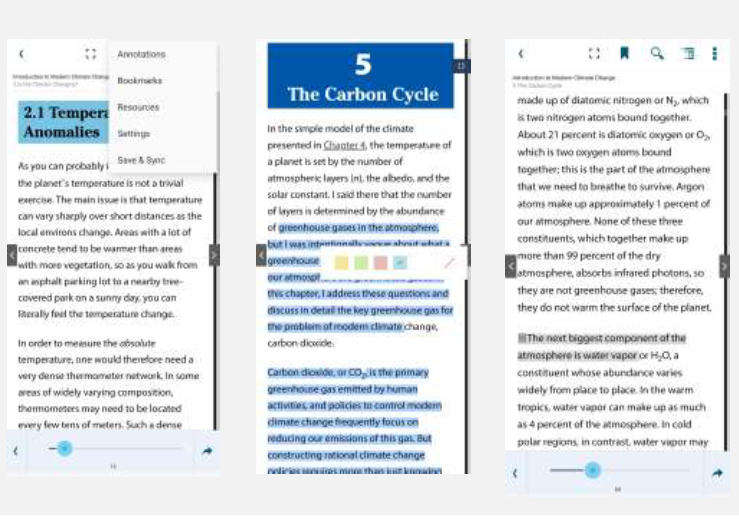
Log in to the app on your tablet or mobile. This enables you to read textbooks online and offline on your devices.
You will have access to all of the same functionality you have on the web browser / desktop app
version.
Remember, you can download the Spiral app for mobile devices via the Cambridge Spiral guide page above.
Next section: Exploring Cambridge Aspire
Log in to the app on your tablet or mobile. This enables you to read textbooks online and offline on your devices.
You will have access to all of the same functionality you have on the web browser / desktop app
version.
Remember, you can download the Spiral app for mobile devices via the Cambridge Spiral guide page above.
Next section: Exploring Cambridge Aspire