Cambridge Spiral - More Features
Cambridge Spiral eReader: Bookmarks
The following instructions feature the Spiral eReader with full functionality. To enable this functionality, you will need to be logged in via your personal account. See instructions on how to create a personal account.
Adding Bookmarks
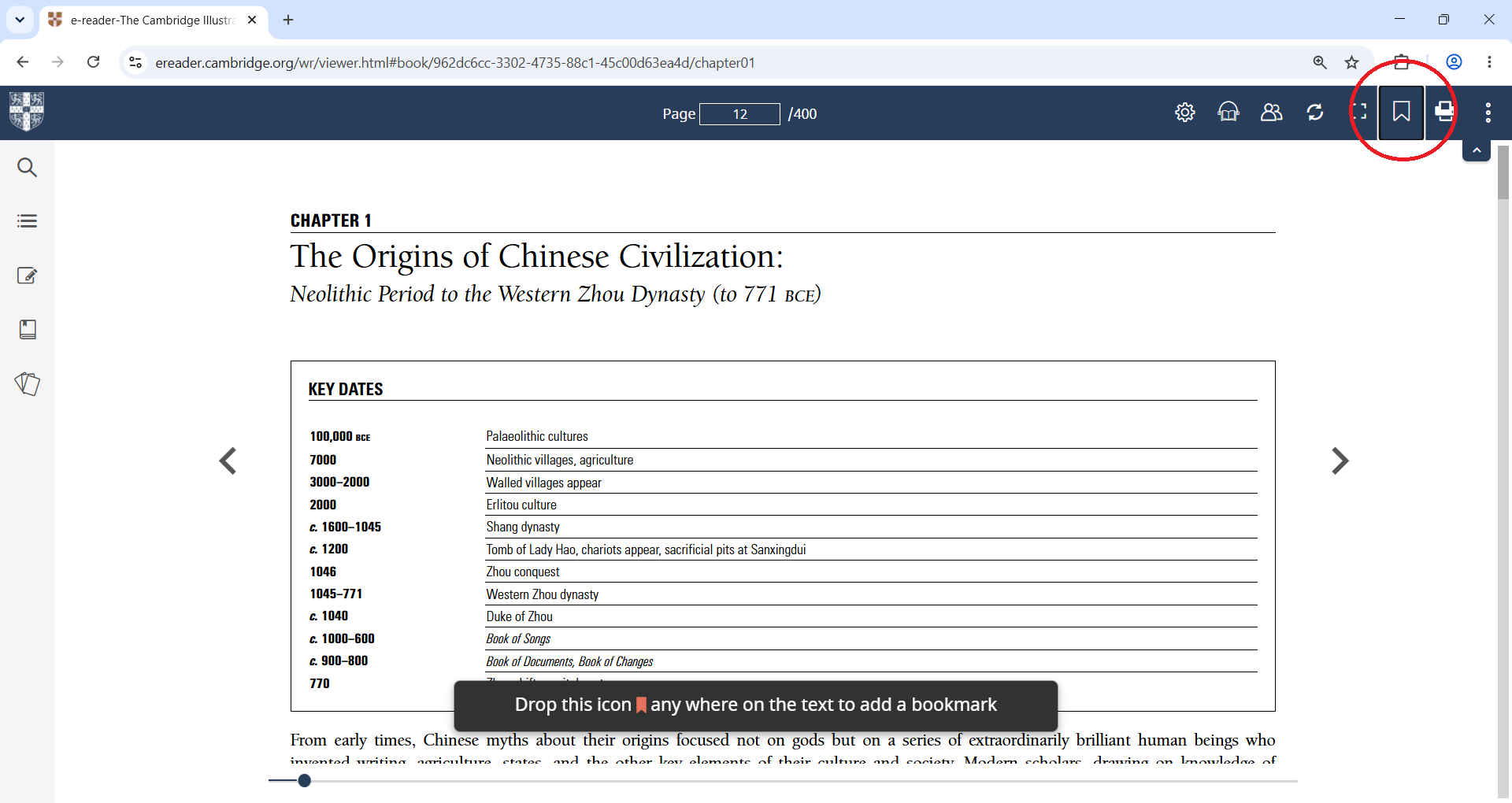
To add a bookmark to text within a book, select the bookmark feature on the top right and click the text to drop the bookmark in.
Bookmark menu
From the bookmark menu, you can view, edit or delete bookmarks.
Please note these bookmarks should not be confused with the web page bookmarks you can create using your Cambridge Aspire account, which are simply a way of managing your list of favourite titles.
The following instructions feature the Spiral eReader with full functionality. To enable this functionality, you will need to be logged in via your personal account. See instructions on how to create a personal account.
Adding Bookmarks
To add a bookmark to text within a book, select the bookmark feature on the top right and click the text to drop the bookmark in.
Bookmark menu
From the bookmark menu, you can view, edit or delete bookmarks.
Please note these bookmarks should not be confused with the web page bookmarks you can create using your Cambridge Aspire account, which are simply a way of managing your list of favourite titles.
Cambridge Spiral: Viewing Settings
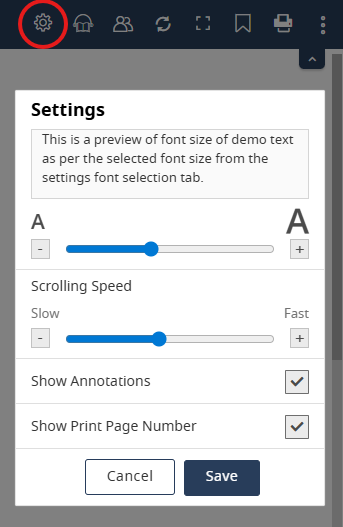
The Settings cog icon in the top right corner of the screen will open a menu which allows you to:
- Increase and decrease font size
- Adjust scroll speed
- Toggle annotations visibility on and off
- Toggle print page numbers on and off
The Settings cog icon in the top right corner of the screen will open a menu which allows you to:
- Increase and decrease font size
- Adjust scroll speed
- Toggle annotations visibility on and off
- Toggle print page numbers on and off
Cambridge Spiral: Printing
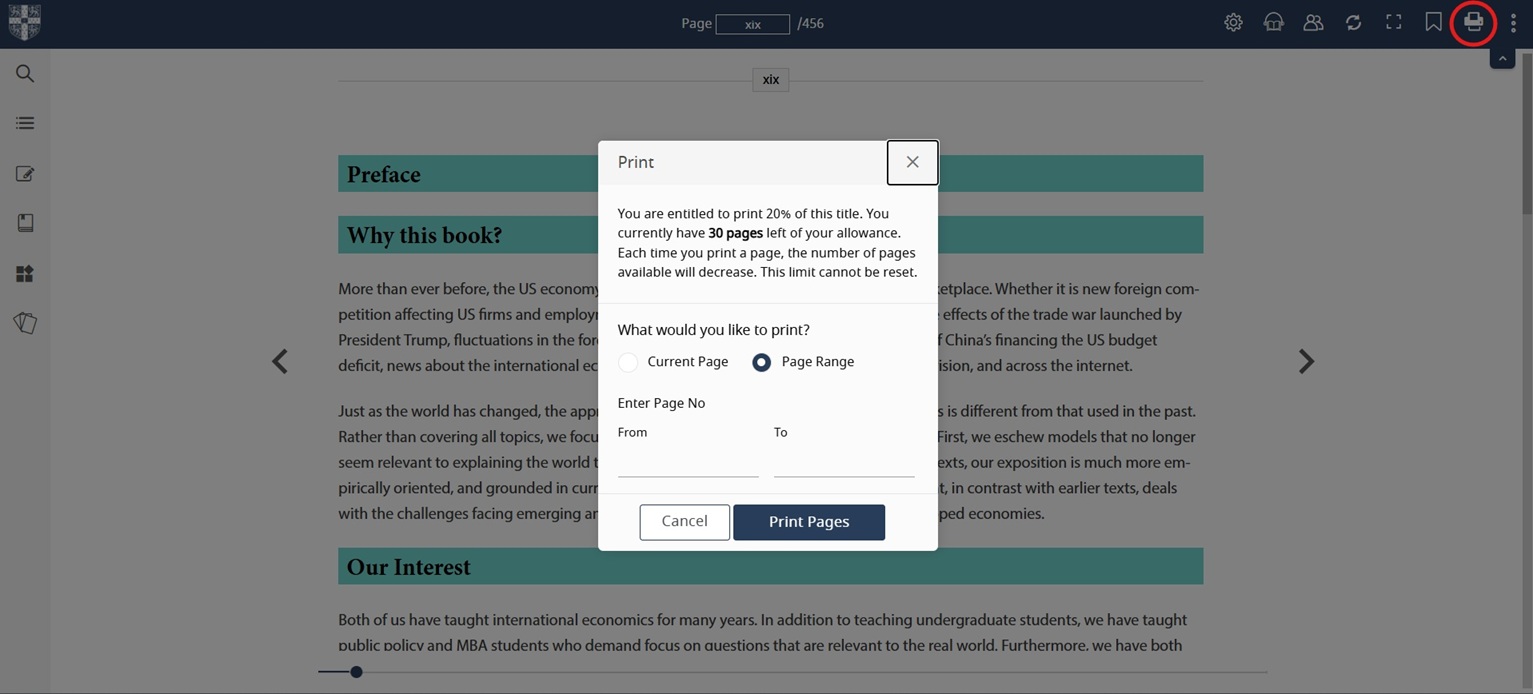
You can use the print icon in the top right hand corner to print up to 20% of a textbook. The print menu will inform you of how much of your allowance you have already used, and allow you to select to print either your current page or a page range.
You can use the print icon in the top right hand corner to print up to 20% of a textbook. The print menu will inform you of how much of your allowance you have already used, and allow you to select to print either your current page or a page range.
Cambridge Spiral: Text-to-Speech
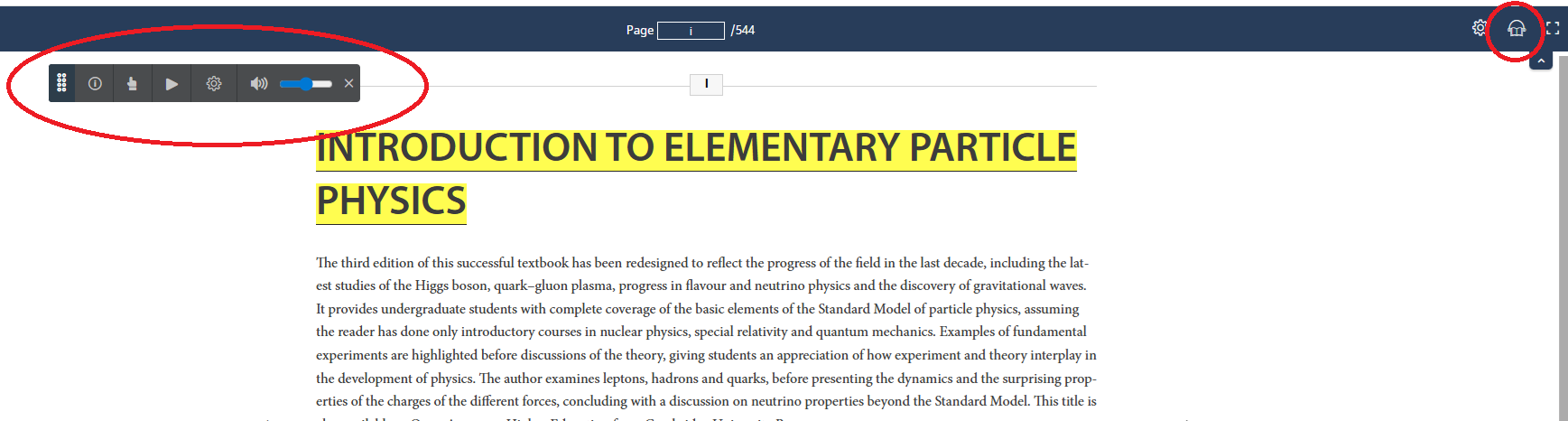
You can use the in-built text-to-speech tool to experience automated natural voice reading on compatible titles in our catalogue. eTextbooks with text-to-speech enabled will show the headphones icon ready to use in the top-right panel. The text-to speech function is available on web, desktop and mobile devices.
Please note that some of our textbooks do not have the text-to-speech tool enabled, and some may not work optimally for some book content (e.g. mathematical equations and notation).
Where the content is compatible, text-to speech works for users who are anonymous as well as those who are logged in.
Once you click the headphones icon, Spiral will begin reading aloud from the top of the current page. A pop-up control panel will appear, allowing you to set preferences for speed and continuous play.
Next step: Spiral Annotations and Groups
You can use the in-built text-to-speech tool to experience automated natural voice reading on compatible titles in our catalogue. eTextbooks with text-to-speech enabled will show the headphones icon ready to use in the top-right panel. The text-to speech function is available on web, desktop and mobile devices.
Please note that some of our textbooks do not have the text-to-speech tool enabled, and some may not work optimally for some book content (e.g. mathematical equations and notation).
Where the content is compatible, text-to speech works for users who are anonymous as well as those who are logged in.
Once you click the headphones icon, Spiral will begin reading aloud from the top of the current page. A pop-up control panel will appear, allowing you to set preferences for speed and continuous play.
Next step: Spiral Annotations and Groups